Menu
Contact Us Free Trial
FIRESTICK
Setup Guide · Firestick

IPTV on Firestick:
3 Powerful Steps for
Instant streaming

Updated: May 2026
10 min read
NZ IPTV Team
IPTV on Firestick

Getting IPTV on Firestick is one of the quickest ways to transform your Amazon Fire TV Stick into a complete streaming powerhouse. Whether you own a Firestick 4K, Firestick 4K Max, or a standard Fire TV Stick, this step-by-step guide covers everything, from enabling unknown sources to configuring HotPlayer, IBO Player Pro, SmartOne IPTV, and TiviMate with your NZ IPTV subscription. In 2026, IPTV on Firestick remains the most popular and affordable way for Kiwi households to access NZ IPTV generous 50,000+ live channels and 150,000+ VOD title.

STEP 1Enable Apps from Unknown Sources

In certain regions, Amazon Firestick does not permit direct installation of IPTV apps from the Amazon App Store. You must enable Apps from Unknown Sources first to sideload players via the Downloader app.

Follow these steps exactly to unlock sideloading on your Firestick, a mandatory first step before installing any IPTV Player on Firestick player:

1
Go to Firestick Settings

Turn on your Firestick and navigate to the Home Screen. Select the Settings menu (gear icon on the far right of the top bar), Open My Fire TV → click 7 times on Fire TV Stick to Unlock Developer Options.
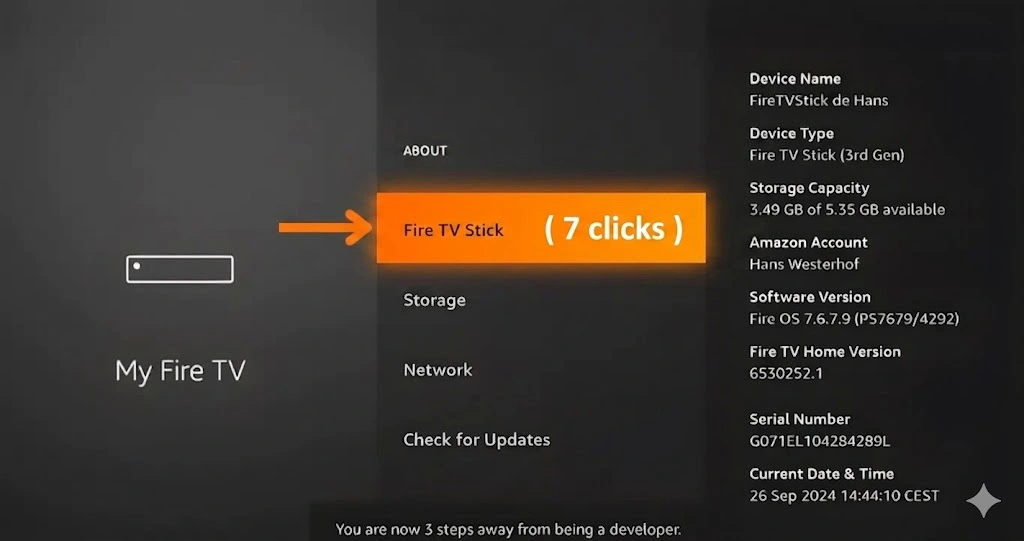
IPTV on Firestick — Developer Options
2
Select Developer Options

Now you have become a developer. Press Back and select Developer Options.
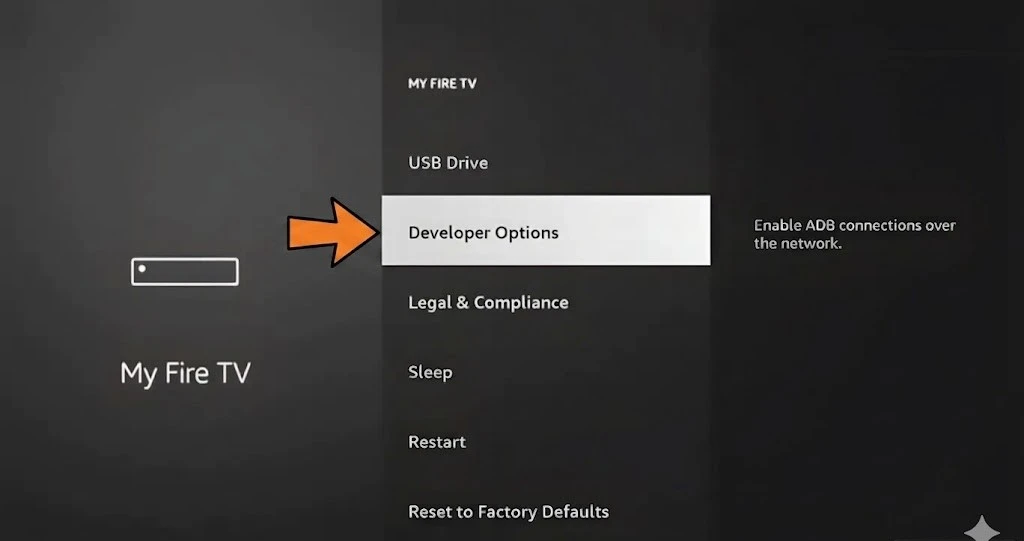
IPTV on Firestick — Developer Options menu
3
Enable Apps from Unknown Sources

Inside Developer Options, toggle Apps from Unknown Sources → ON. Confirm the warning by selecting Turn On.
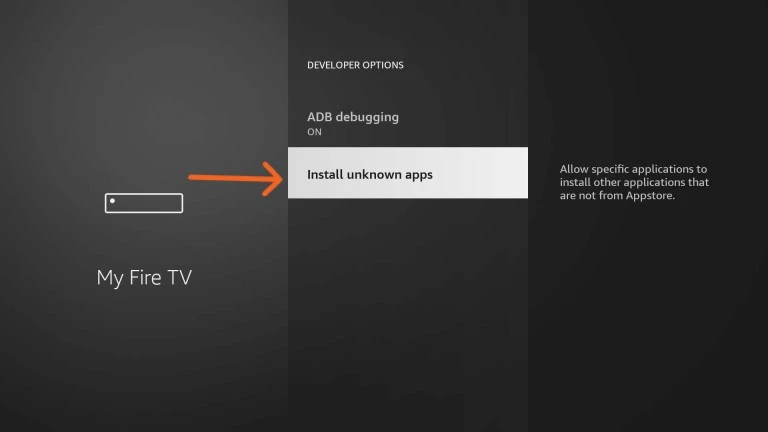
IPTV on Firestick — Install unknown apps

You only need to do this once. The setting stays enabled permanently until you reset your device. For a detailed breakdown see Fire OS on Wikipedia or AFTVnews.

STEP 2Install the Downloader App
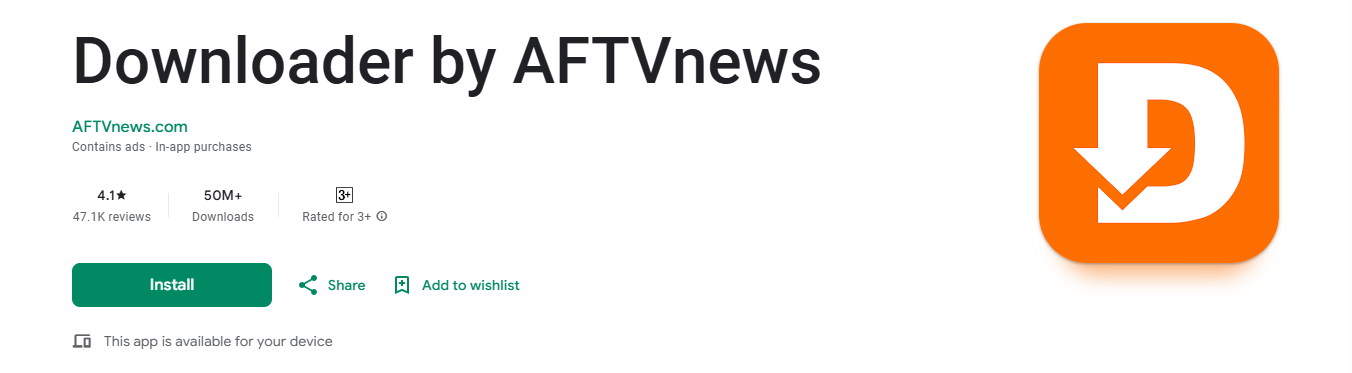
IPTV on Firestick — Downloader app

The Downloader app is the bridge that lets you install any IPTV player onto your Firestick using a simple numeric code. It's available directly from the Amazon App Store.

IPTV on Firestick — installing the Downloader app
1
Return to Firestick Home

Press the Home button on your remote.

2
Search for "Downloader"

Select the Search icon at the top. Type Downloader and select Downloader by AFTVnews.

3
Install & Open

Click Download / Install. Once installed, open the Downloader app to download APK files using a short numeric code.

STEP 3Download Your IPTV Player

Open the Downloader app and enter the code for your chosen player, then click Go. The APK downloads and installs automatically.

Not sure which to pick? HotPlayer is the easiest for beginners (30-day free trial). TiviMate is the most feature-rich for power users. See what people say in the r/TiviMate community.

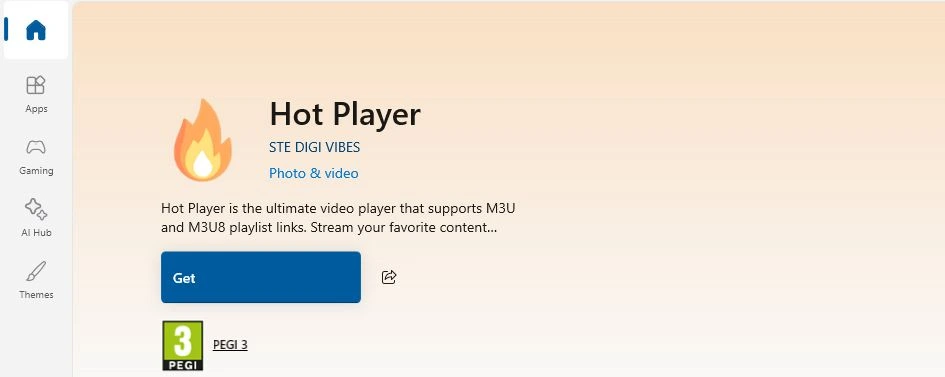
1 - HotPlayer by STE DIGI VIBES

HotPlayer
IPTV on Firestick · UniversalHotPlayer Free 30 Days
Downloader Code:395800
HotPlayer IPTV app setup
1
Get Your MAC Address

Launch HotPlayer on your Firestick and note down the MAC address on the main screen.
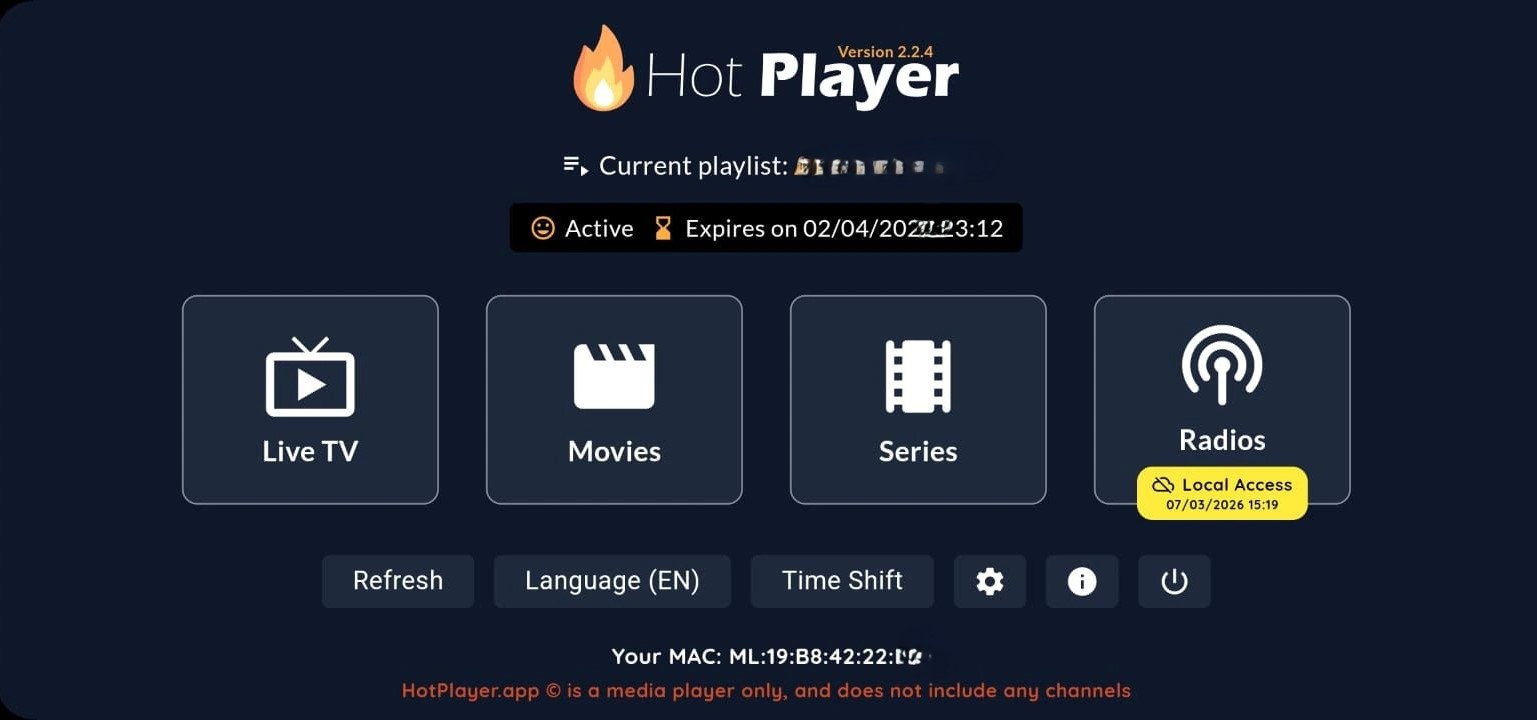
HotPlayer MAC address screen
2
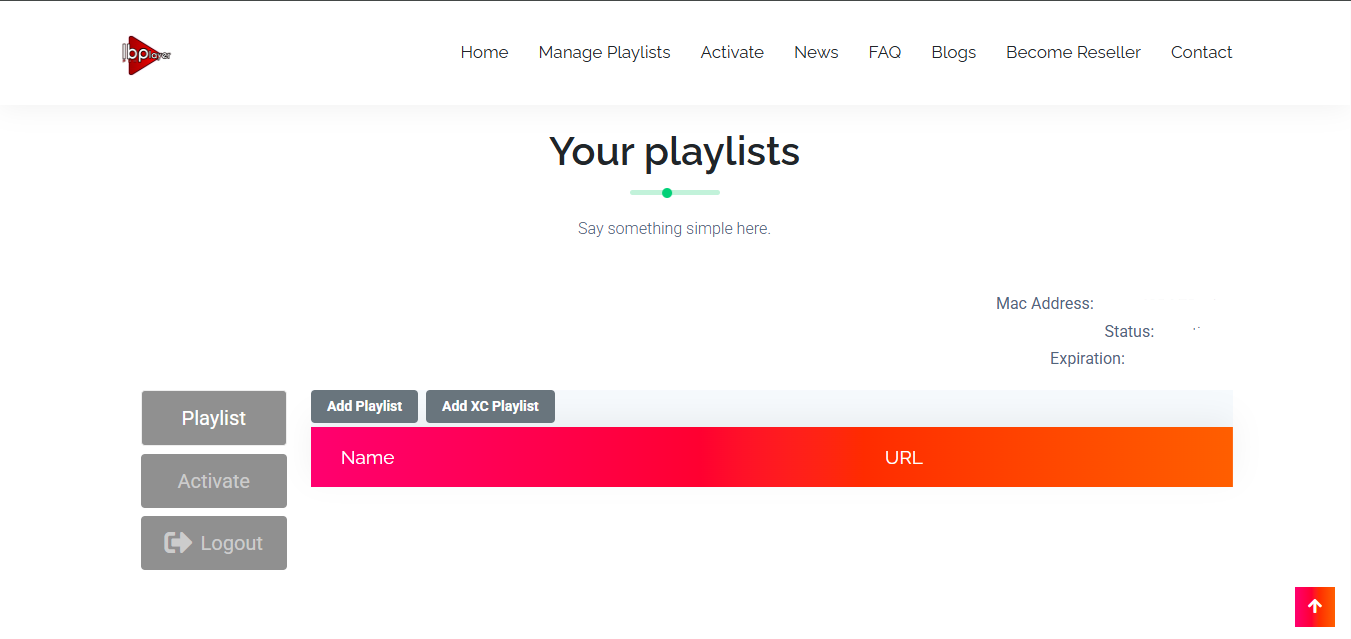
Visit hotplayer.app to upload the playlist

On your phone or computer, go to hotplayer.app/upload.
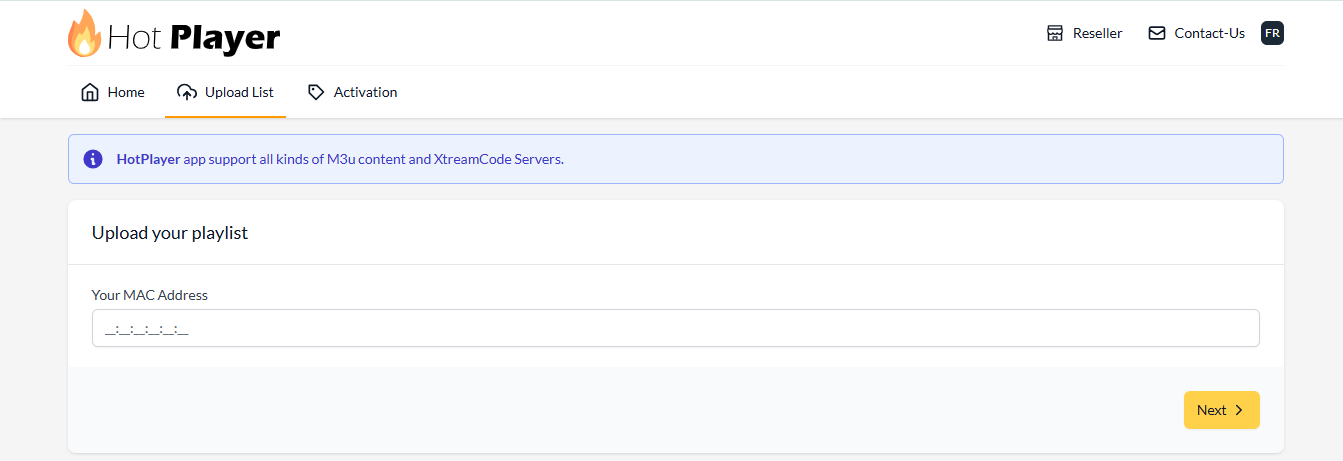
HotPlayer portal
3
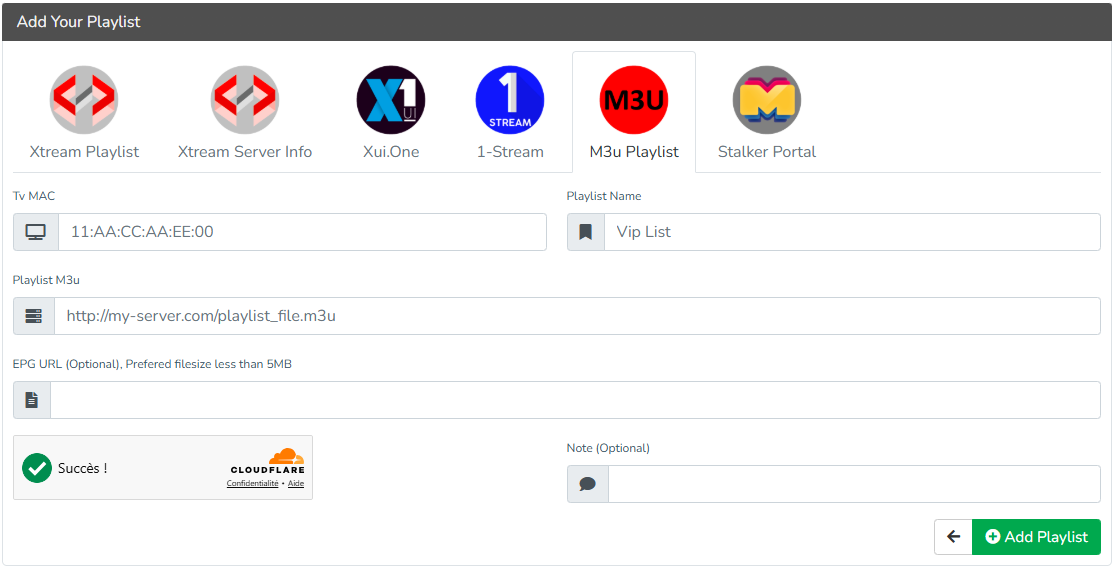
Enter Your Details

Enter your MAC address, press NEXT, and paste your M3U Playlist URL.

Your URL must start with http:// — not https://. Always double-check.
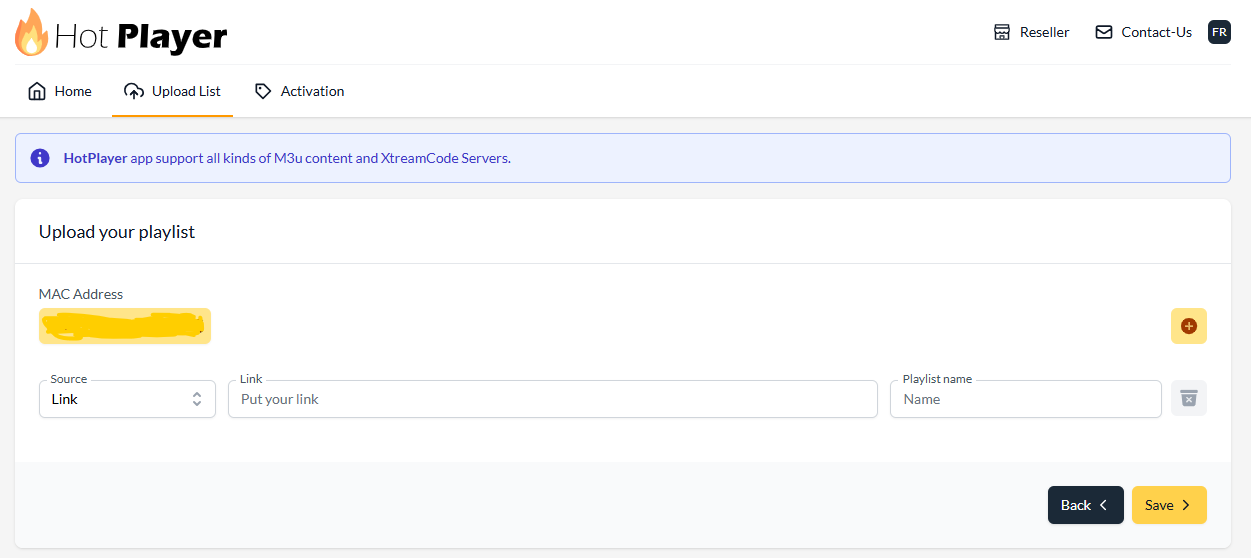
HotPlayer login screen
4
Save & Restart

Click Save. Restart HotPlayer on your Firestick. Your channels and VOD library appear automatically.

IBO Player Pro — Firestick Setup
IBO Player Pro
IPTV on Firestick · Web PortalIBO Player Pro Free 7 Days
Downloader Code:923441
1
Collect Device Credentials

Open IBO Player Pro and note both the MAC address and Device Key.
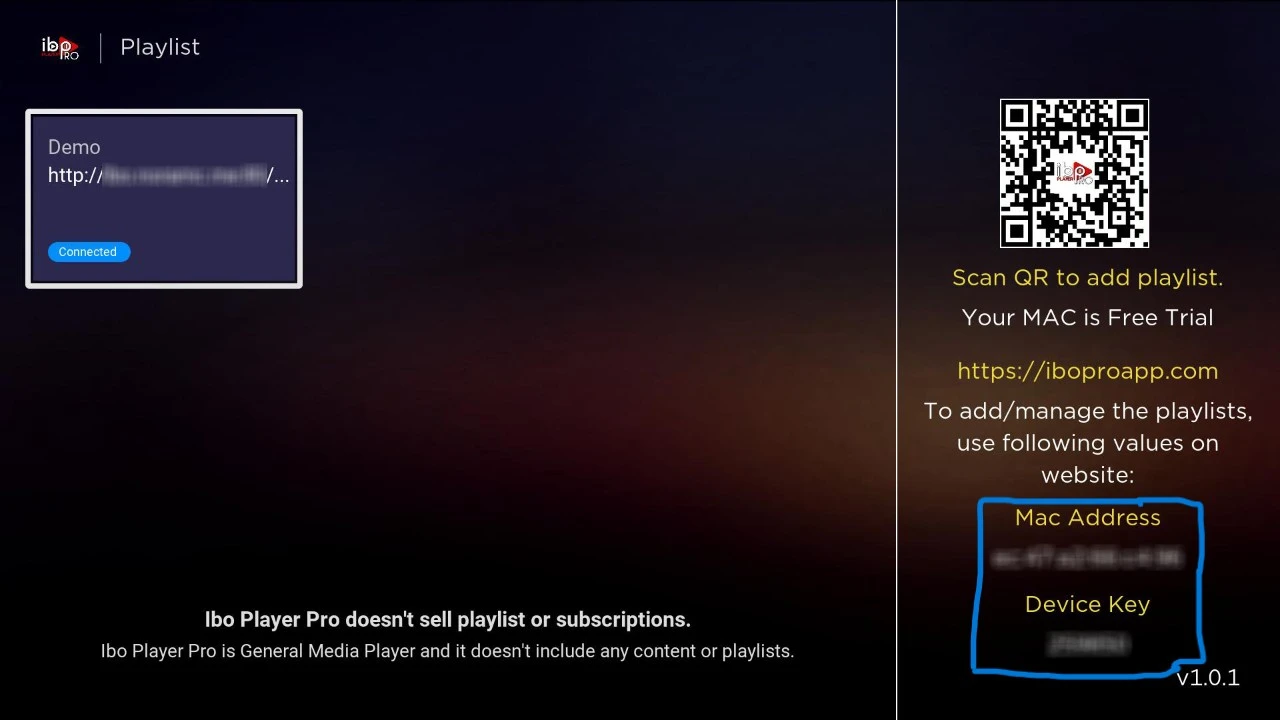
IBO Player Pro home
2
Log In to the Web Portal

Visit iboplayer.pro. Enter your MAC address and Device Key.

3
Add Your NZ IPTV Playlist

Click "Add Playlist" and paste the M3U URL.

Ensure the URL starts with http:// not https://.

IBO Pro login
4
Restart & Stream

Restart the app. Channels and VOD load automatically.

SmartOne IPTV — Firestick Setup
SmartOne IPTV
IPTV on Firestick · Free for 15 DaysSmartOne IPTV Smart Cast
Available via:Amazon Appstore
SmartOne IPTV on Firestick
1
Install from Amazon Appstore

Search for SmartOne IPTV in the Amazon Appstore and install directly — no downloader code needed.

2
Note Your MAC Address

Launch SmartOne IPTV, go to Settings and note your unique MAC address.
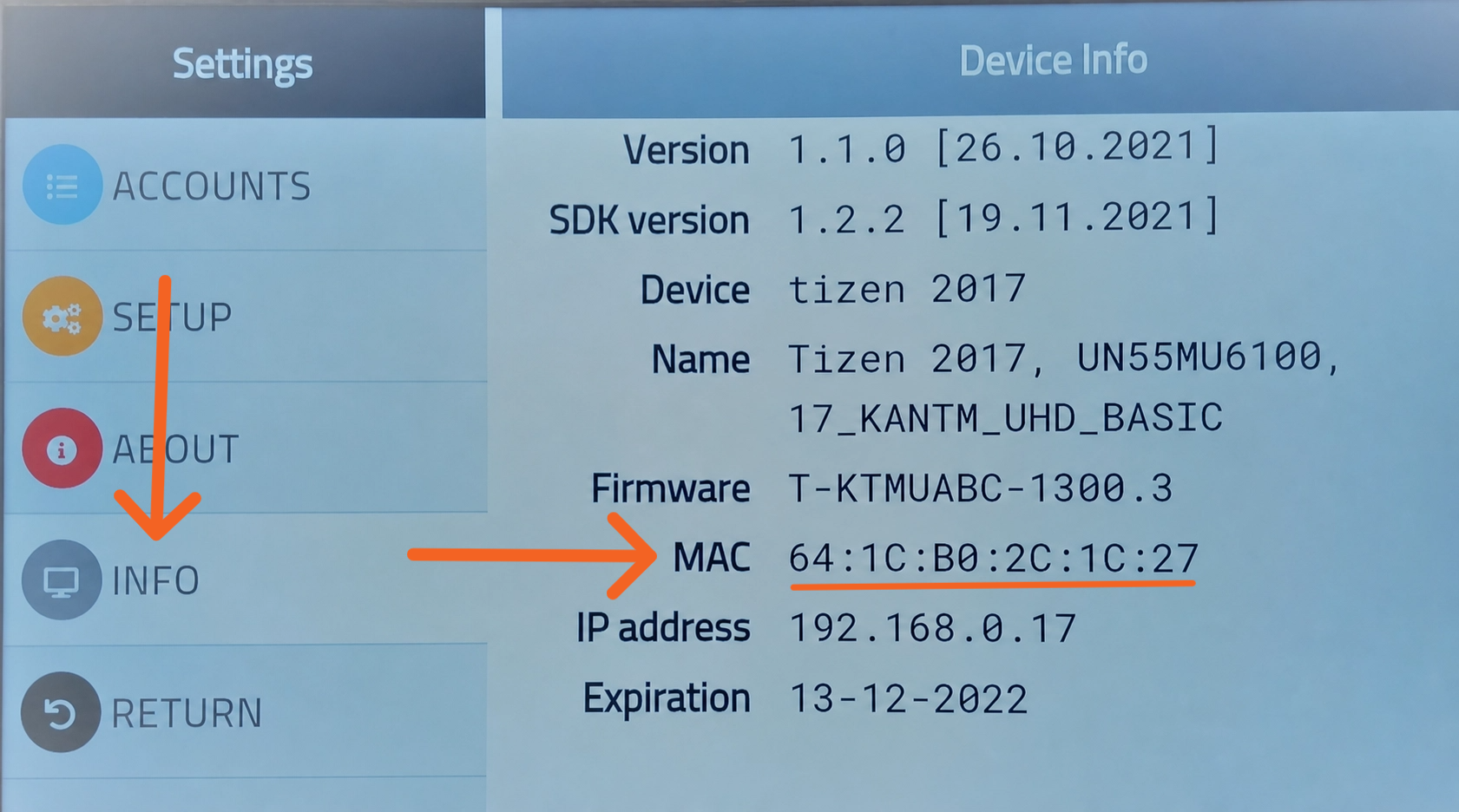
SmartOne settings
3
Upload Your Playlist Online

Go to smartone-iptv.com. Choose M3U Playlist, enter your MAC, paste your NZ IPTV URL.

Paste URL starting with http:// — not https://.

SmartOne login
4
Enjoy Your Channels

Channels and movies appear automatically.

TiviMate — Firestick Setup (Power Users)
TiviMate
IPTV on Firestick · Premium-only PlayerTiviMate Armobsoft FZE
TiviMate IPTV on Firestick

TiviMate is the most feature-rich IPTV player for IPTV on Firestick, offering EPG support, multi-view, catch-up, recording, and a beautiful modern UI. Compatible with Firestick 4K, 4K Max, and 2nd generation or newer Fire TV Sticks (minimum 1.5 GB RAM, 8 GB storage).

FeatureDescription
EPG SupportFull Electronic Programme Guide
Multiple PlaylistsManage different IPTV providers in one place
Catch-Up & RecordingAccess previously aired content and record live TV (premium)
Multi-ViewWatch multiple channels simultaneously (premium)
Parental ControlsRestrict access to selected content categories
Favourites & GroupsBuild custom channel lists with one-tap access
1
Install via Downloader

Open Downloader, enter 272483 and tap Go. Install the APK when prompted.

2
Open TiviMate & Add Playlist

Launch TiviMate, tap Add Playlist, and select Xtream Codes Login.
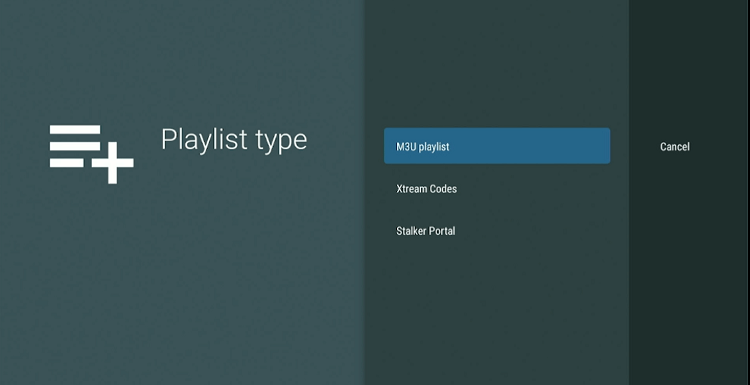
TiviMate playlist setup
3
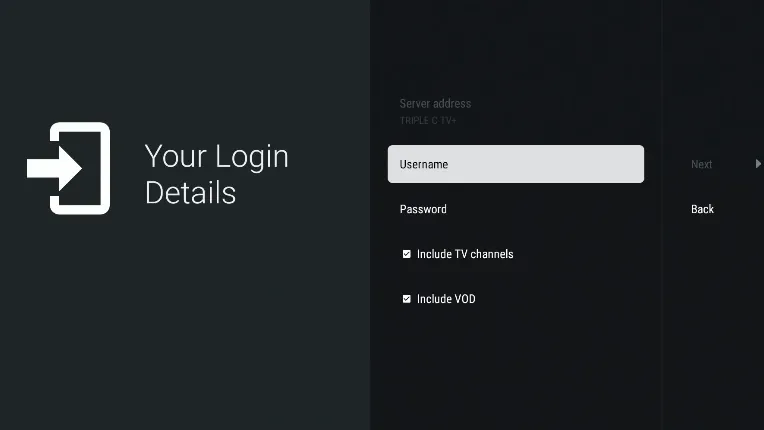
Enter Your Subscription Details

Fill in: Server URL, Username, and Password from NZ IPTV. Enable Include VOD.
TiviMate upload playlist
4
Save & Start Watching

Tap Done. TiviMate loads all channels — Live TV, Movies & Series, TV Guide, and Settings.

Important Note :

The players listed above are our top recommendations, but they are by no means your only options. all stores offer a wide variety of IPTV players that are fully compatible with your NZ IPTV subscription,

The setup process is the same across most players. Simply download your preferred player, navigate to the add playlist or add account section, and enter your Xtream Codes credentials (Server URL, Username, and Password) or paste your M3U URL exactly as described in the guides above. Most modern IPTV players follow the same standard login flow, so switching between apps is quick and straightforward.

However, some IPTV players may use slightly different terminology or request additional information such as an EPG URL, a portal URL, or a MAC address. If you ever come across a login screen that looks unfamiliar or requests credentials you don’t have, do not worry about that, simply reach out to our support team via WhatsApp or Email and we will walk you through all the necessary steps.

Firestick Support

Fix Common IPTV on Firestick Issues

Quick solutions for the most frequent IPTV on Firestick problems — get back to streaming in under five minutes.

Buffering / Freezing

  • Test speed first: Open Silk Browser on your Firestick, run a speed test. You need 25 Mbps for HD and 50 Mbps for 4K.
  • Use an Ethernet adapter: The Amazon Ethernet Adapter for Fire TV Stick replaces Wi‑Fi with a wired connection — the single biggest quality improvement for IPTV on Firestick.
  • Restart everything: Unplug your Firestick, router and modem for 30 seconds, then power on router first, Firestick last.
  • Close background apps: Hold the Home button → select App Switcher → swipe away all open apps.
  • Reduce quality: In your IPTV player settings, temporarily drop from 4K to HD while your connection stabilises.

Playlist Won't Load

  • Check the protocol: Your M3U URL must start with http:// — not https://. Browsers often auto-upgrade it when you copy-paste.
  • No spaces: A single leading or trailing space in the URL field silently breaks the connection.
  • Try Xtream Codes instead: If M3U fails, switch to the Xtream Codes login (server URL, username, password) in your app settings.
  • Re-upload to the portal: For HotPlayer or IBO Pro, log back into the web portal, delete the old playlist, and re-paste the URL.
  • Check subscription status: An expired NZ IPTV subscription returns an empty or invalid playlist — contact support to renew.

App Won't Install / Sideload Fails

  • Enable Unknown Sources: Settings → My Fire TV → Developer Options → Apps from Unknown Sources → ON. This must be on before any IPTV on Firestick sideload.
  • Recheck the Downloader code: HotPlayer = 395800 · IBO Pro = 923441 · TiviMate = 272483. Mistyped codes download the wrong or broken APK.
  • Clear Downloader storage: Settings → Applications → Manage Installed Apps → Downloader → Clear Cache & Data, then retry.
  • Enough storage? Go to Settings → My Fire TV → About → Storage. You need at least 500 MB free for the install to succeed.

Black Screen / No Audio

  • Switch decoder: In your IPTV player settings, toggle between Hardware and Software decoding. Hardware works for most channels; software handles unusual codecs.
  • Change audio output: Set output to Stereo / PCM instead of Dolby Bitstream if your TV or soundbar isn't decoding the audio track.
  • Reseat the Firestick: Unplug from the HDMI port, wait 10 seconds, plug back in — or try a different port.
  • Update Fire TV OS: Settings → My Fire TV → About → Check for Updates. An outdated OS is a common cause of codec failures for IPTV on Firestick.

App Crashes / Remote Freezes

  • Clear app cache: Settings → Applications → Manage Installed Apps → [Your IPTV App] → Clear Cache. Do not use "Clear Data" if you want to keep your login saved.
  • Force-stop and reopen: From the same menu, tap Force Stop, wait 5 seconds, then relaunch. Resolves most single-session freezes.
  • Full power cycle: Unplug the Firestick from its power adapter (not just the HDMI) for 60 seconds. This flushes RAM fully.
  • Reinstall the latest APK: Uninstall the app, reboot, then use Downloader to fetch a fresh copy — cached APKs sometimes become corrupted.

EPG / TV Guide Not Loading

  • Add the EPG URL: In your player settings, find EPG Source or XMLTV URL and paste the guide URL provided by NZ IPTV — it is separate from your M3U playlist.
  • Force a refresh: In TiviMate: Settings → Playlists → [Your Playlist] → Refresh. In HotPlayer / IBO Pro: clear app cache and relaunch.
  • Allow 24 hours: EPG data can take up to 24 hours to fully populate after first setup on IPTV on Firestick.
  • Check Firestick date/time: Settings → Device → Date & Time → Set Automatically. A wrong clock stops EPG matching channels to the correct time slots.

Common Questions About IPTV on Firestick

Which IPTV player is best for Firestick in 2026?
For beginners, HotPlayer is the top pick — easiest setup and 30-day free trial. For power users who want EPG, recording, and multi-view, TiviMate is the gold standard. The r/TiviMate subreddit consistently ranks it #1 for Fire TV users.
What Firestick models work with IPTV apps?
All modern Fire TV Sticks work — Firestick 4K, 4K Max, Fire TV Stick Lite, and Fire TV Cube. TiviMate requires 2nd generation or newer with at least 2 GB RAM. Check Amazon Fire TV Wikipedia and AFTVnews.
Why does my IPTV URL need to start with http:// not https://?
The M3U URL generated by the server is an http:// link. Browsers often auto-upgrade it to https:// when you copy-paste, which breaks the stream connection. Always check the protocol before saving.
Do I need a subscription to get IPTV on Firestick?
Yes — you need two things: an NZ IPTV subscription (available at our pricing page) which provides your M3U URL or Xtream Codes login, and a compatible app. Apps have free trial periods; after those, small activation fees apply directly to the app developers.
How fast does my internet need to be for IPTV on Firestick?
Minimum 25 Mbps for HD and 50 Mbps+ for Full HD and 4K. Most NZ fibre connections comfortably exceed this. For best results, connect via Ethernet adapter rather than Wi-Fi.

Further Reading & Resources

Ready to Set Up IPTV on Firestick?

Setting up IPTV on Firestick takes less than 10 minutes once you have your NZ IPTV subscription. Enable Unknown Sources, install Downloader, grab your player of choice, and paste your playlist URL, that's it. You'll have instant access to 50,000+ live channels and 150,000+ on-demand titles on every TV in your home.

Whether you're a first-time streamer or upgrading from an older setup, NZ IPTV on Firestick gives Kiwi households the most complete entertainment experience available in 2026.