Setup IPTV on PC or Mac:
Stream Easily on
Desktop & Laptop
Setup IPTV on PC or Mac with ease. This guide walks you through the best free and premium players available for desktop, helping you get your NZ IPTV subscription up and running in just a few minutes. No technical experience required.
For users who want to setup IPTV on PC or Mac, there are several great players to choose from. Two of the most well‑known free and open‑source options are IPTV Smarters Pro — available both as a downloadable app and as an online browser‑based version — and MyIPTV Player, both offering a clean interface and easy setup with your NZ IPTV subscription.
For a more premium experience, players like Hotplayer, SmartOne IPTV, and IBO Player Pro deliver advanced features, smoother performance, and a more polished interface for users who want the best possible streaming experience on their desktop or laptop.
Choose your IPTV player: IPTV Smarters Pro · MyIPTV Player · IBO Player Pro · Hotplayer
Download from the Microsoft Store or Mac App Store. Alternatively, you may download these apps directly from their official websites.
Disclaimer: All third‑party applications and tools mentioned in this setup guide are the sole property of their respective developers and owners. NZ IPTV is not affiliated with, endorsed by, or responsible for any of these applications. We simply recommend them as they are widely used and compatible with our service. Always download apps from their official sources.
 IPTV Smarters Pro (Open Source)
Visit the official IPTV Smarters website at www.iptvsmarters.com and navigate to the downloads section. Make sure to select the correct version for your device — Windows 32‑bit, Windows 64‑bit, or macOS. If you are unsure which version to choose, check your system settings under About This PC (Windows) or About This Mac (Mac).
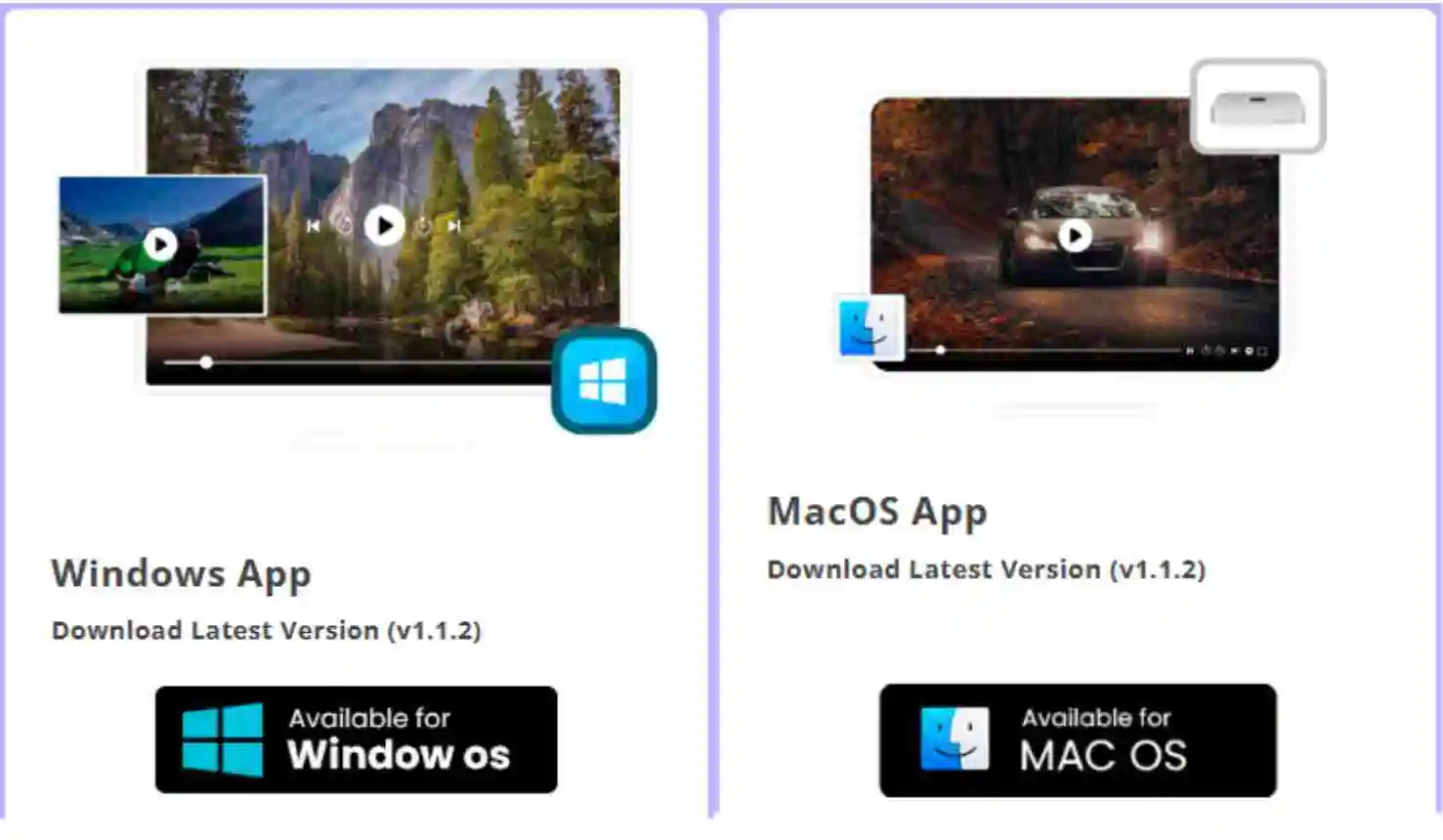
Once the installer file has finished downloading, open your Downloads folder and locate the file. Double‑click the installer and follow the on‑screen instructions to complete the installation. The process takes less than a minute. Once finished, IPTV Smarters Pro will be available on your desktop or in your Applications folder (Mac).
Open IPTV Smarters Pro and choose one of the following methods to connect your NZ IPTV subscription:
Login with Xtream Codes API (recommended): Enter your playlist name (NZ IPTV or any name), Username, Password, and Server URL provided by NZ IPTV, then click ADD PLAYLIST.
http:// — not https://. It may auto‑correct when pasting.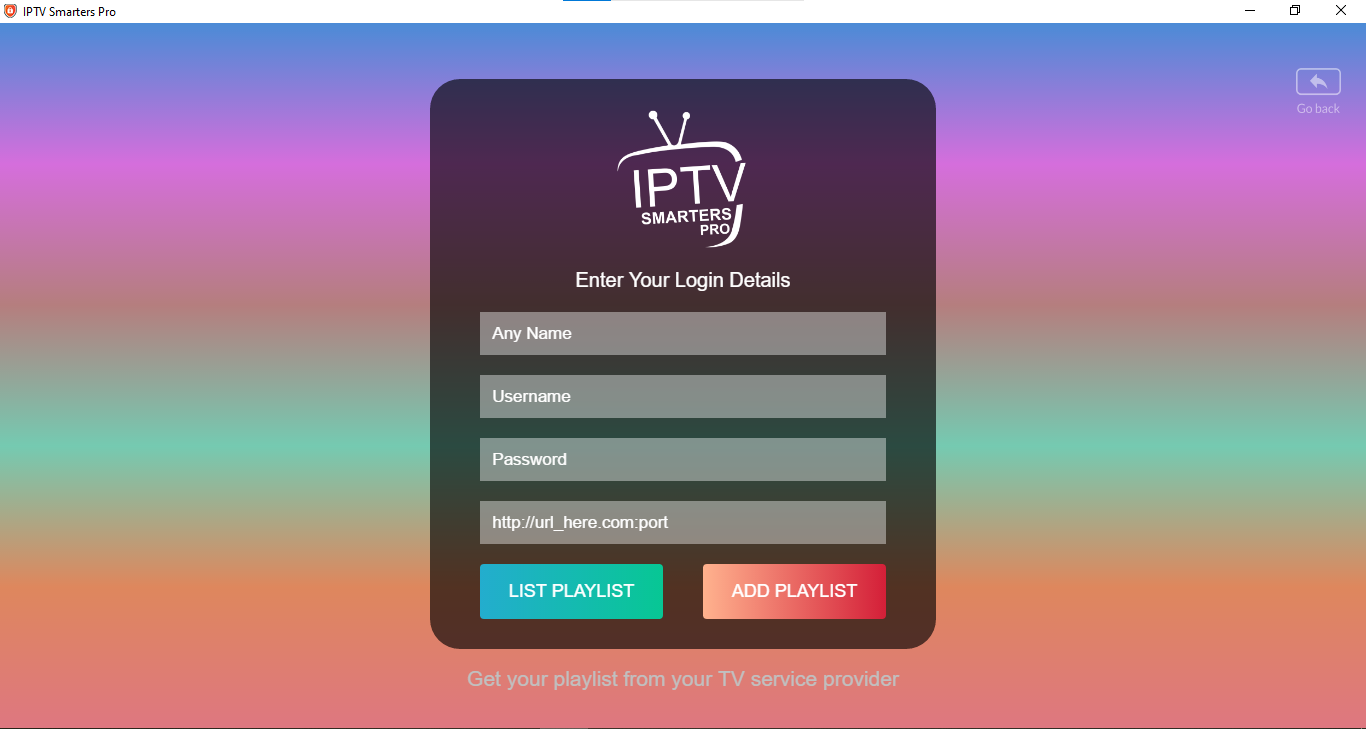
Prefer Not to Download Anything when you try to setup IPTV on PC or Mac ? You can also access the full IPTV Smarters Pro online version directly from your browser, no download, no installation required. Simply visit webtv.iptvsmarters.com, press Add Playlist and log in with your NZ IPTV credentials. You get access to all the same features, channels, and content as the desktop app, from any browser on any computer, Windows, Mac, Linux, or Chromebook. It's the quickest and most convenient way to start streaming IPTV on PC and Mac instantly. 
 MyIPTV Player (Open Source)
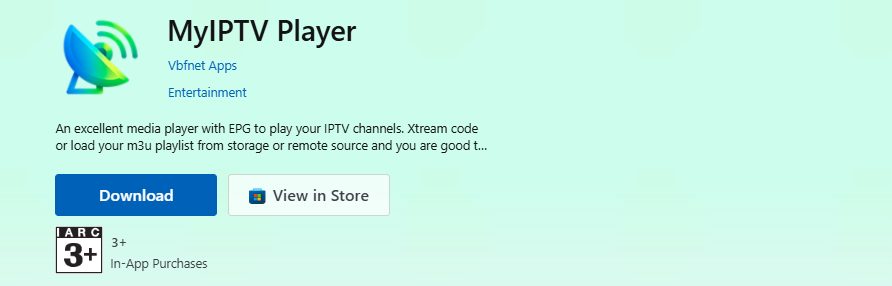
Go directly to the Microsoft Store, click Download and wait for the app to download and install. Once done, click Launch.
Open the app and press Goto Settings. Select Add New Playlist, Xtream Codes and PG Source. Enter the login details provided by NZ IPTV and assign a name for easy identification. Click Add Xtream Source.
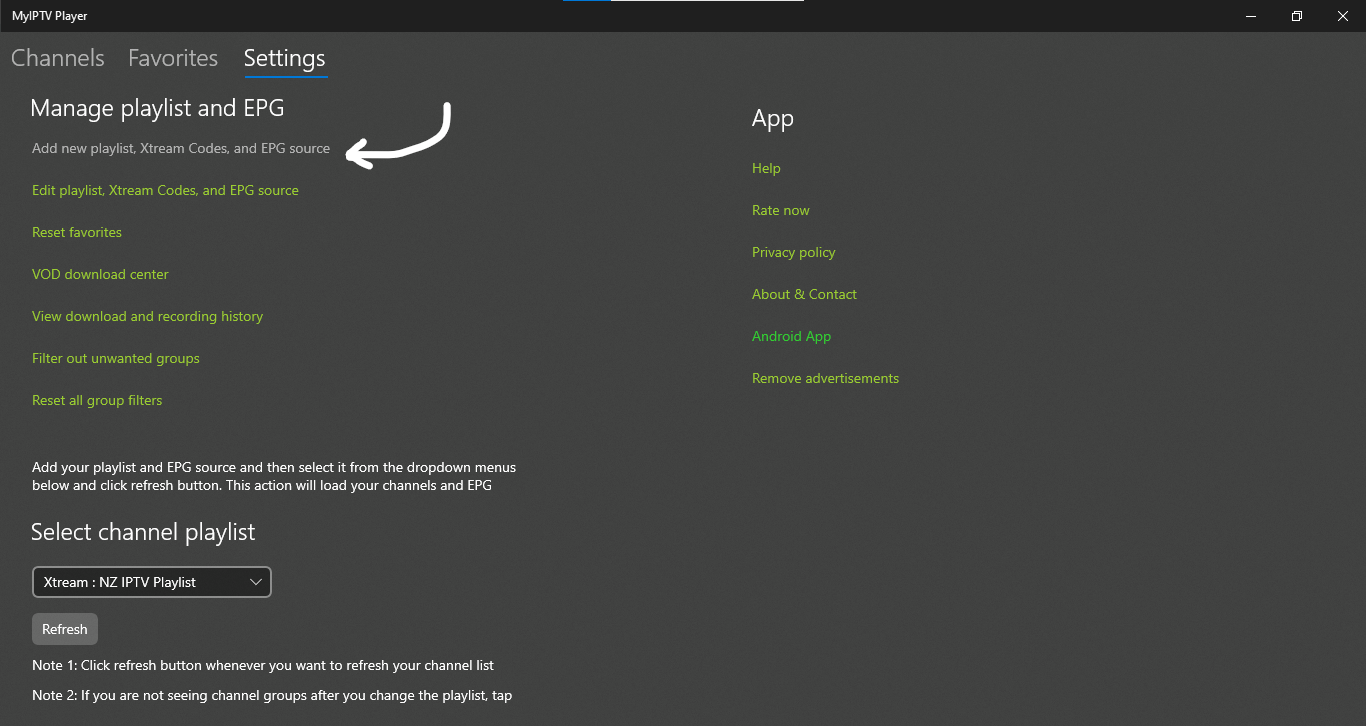
Alternatively, you can upload your playlist using the M3U URL in the Remote Channel List section. Press Add Remote List and, if available, Add EPG Source to confirm.
http:// — not https://.Go back to the home page, click the Select Channel Playlist, choose the playlist you just added, and hit Refresh. Your full channel list will load automatically.
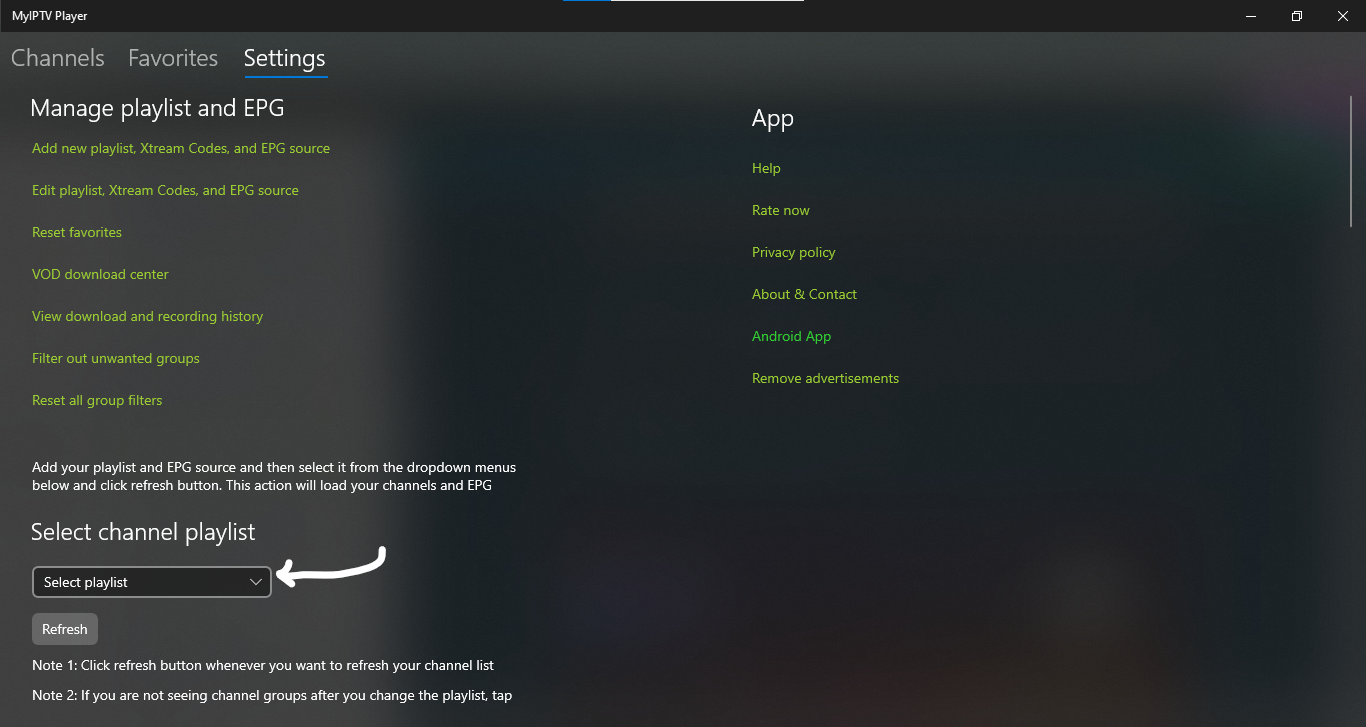
Click Channels (on the top left) to browse your full channel list, or click Program Guide to view the TV schedule. Double‑click on any channel to start watching instantly.
Note: MyIPTV Player is available exclusively on Windows via the Microsoft Store.
 IBO Player Pro (Free 7 Days)
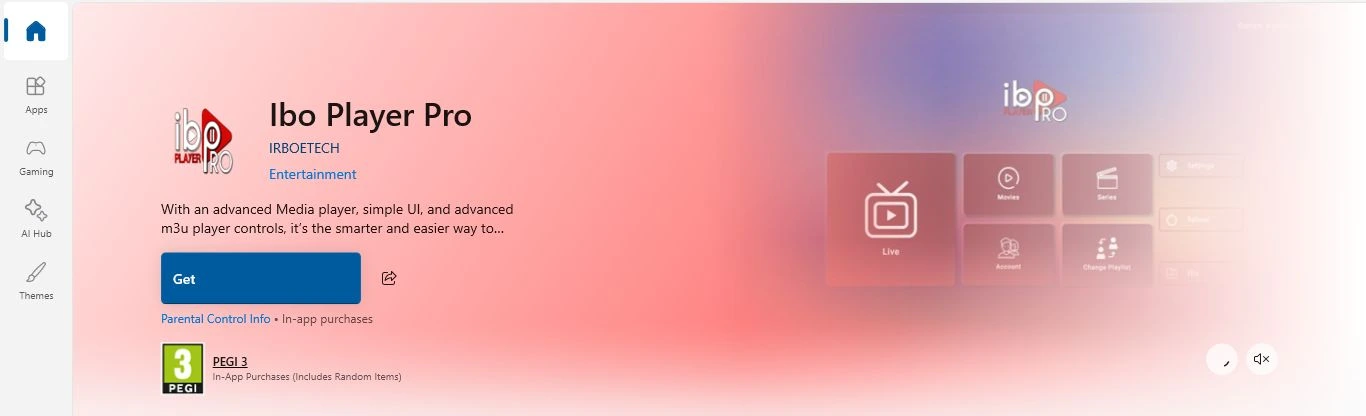
Go directly to the Microsoft Store or Mac App Store. Click Get and wait for the app to download and install. Once done, click Launch.
Open the app on your PC. Instead of a single MAC address, these apps typically display two important pieces of information: a MAC address and a Device Key. Copy these exactly as shown.
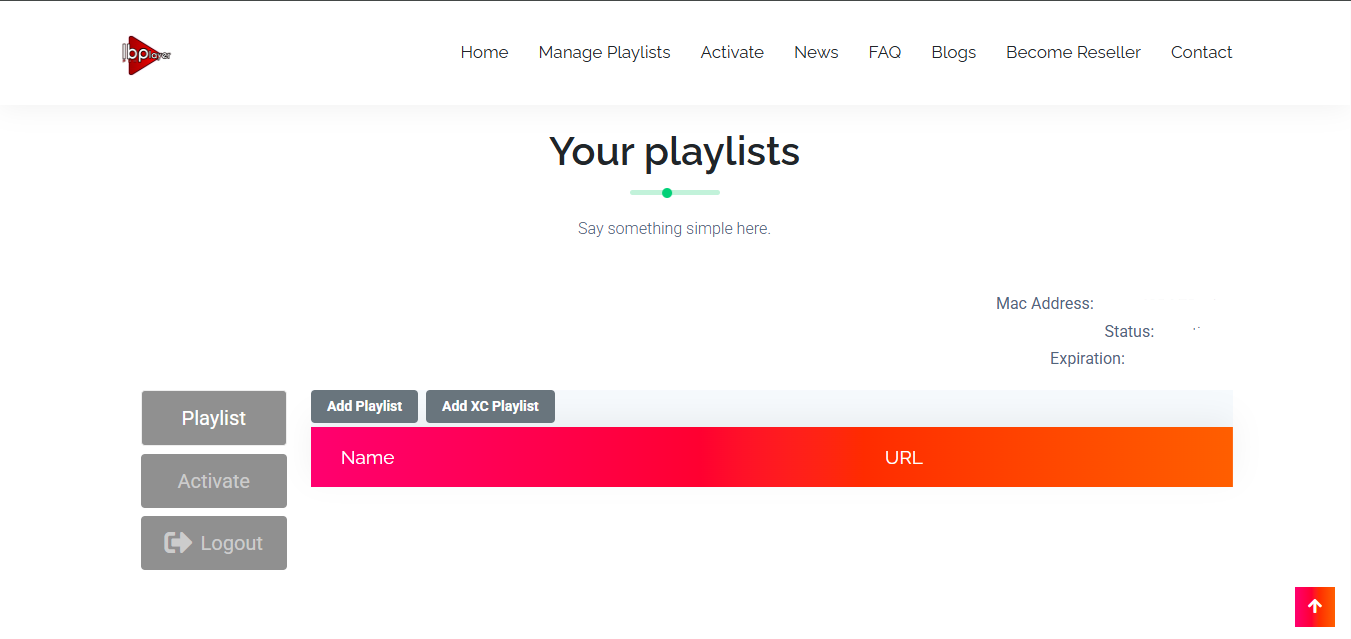
On your computer or smartphone, go to the official IBO Player Pro portal at iboplayer.pro/manage‑playlists. Enter your device's MAC address and Device Key to log in.
Once logged into the portal, look for the option to "Add Playlist". Simply paste the M3U Playlist URL provided by your NZ IPTV provider.
http:// — not https://.Restart the app on your device. Your channels and VOD library should now appear automatically.
 Hotplayer / HOT IPTV (Free 30 Days)
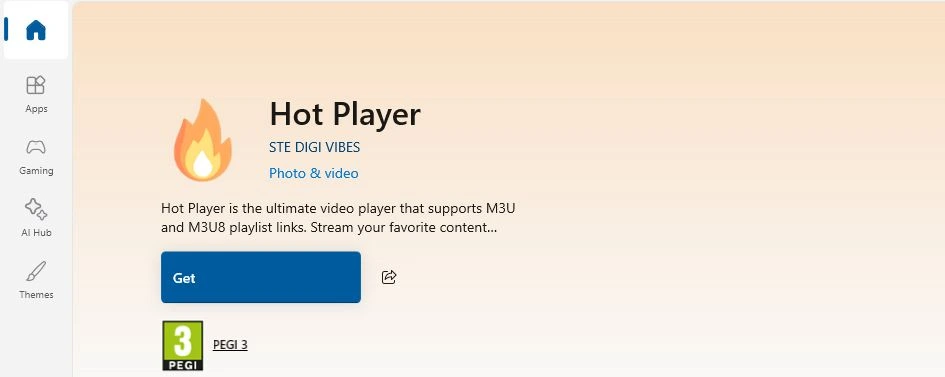
Go directly to the Microsoft Store or Mac App Store. Click Get and wait for the app to download and install. Once done, click Launch.
Launch the Hotplayer app on your device. On the main screen, note down the MAC address displayed — this is unique to your device.
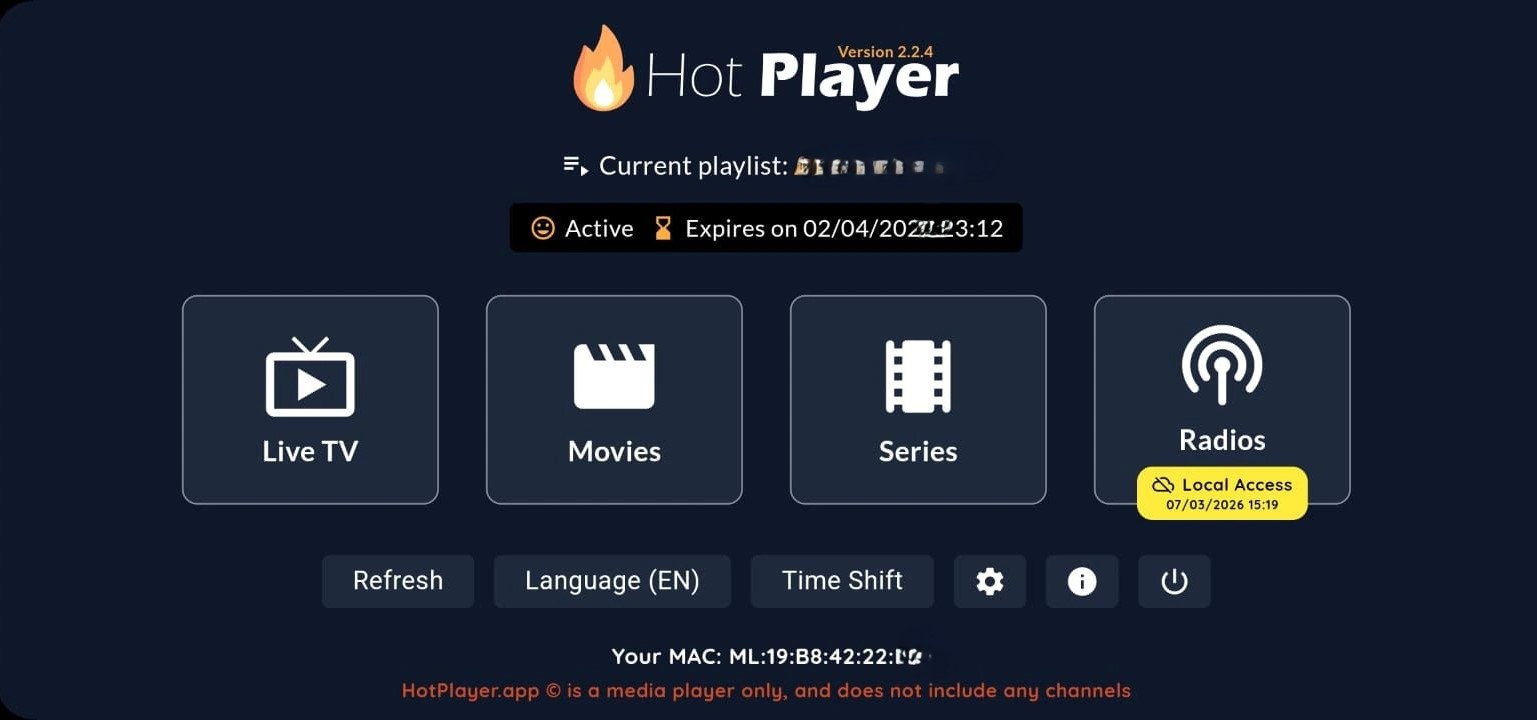
On your phone or computer, go to hotplayer.app/upload.
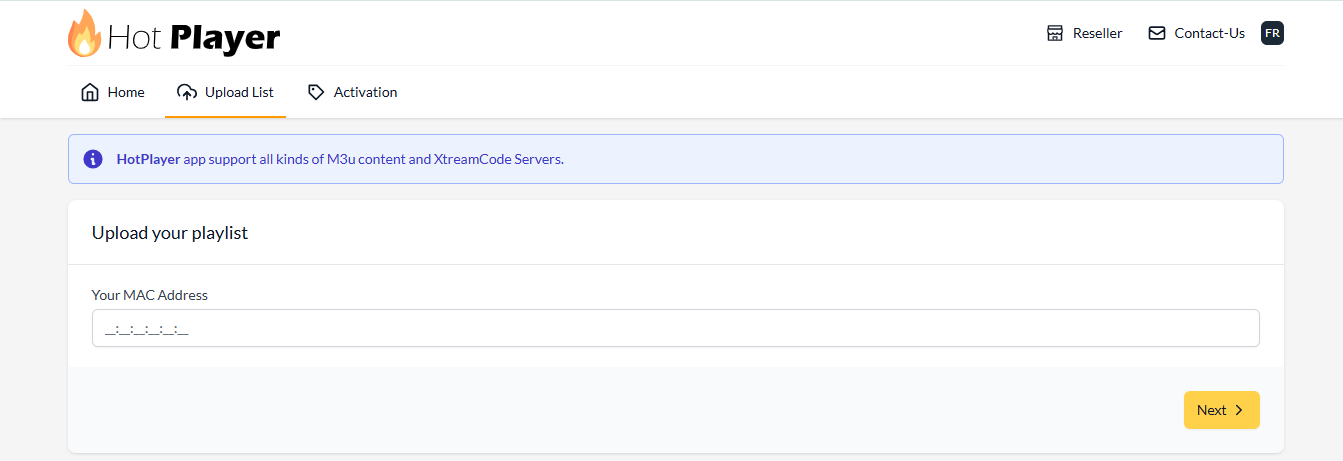
In the upload form, enter your MAC address (from your app screen) and press Next. Paste your M3U Playlist URL provided by NZ IPTV and name your playlist (e.g. NZ IPTV).
http:// — not https://.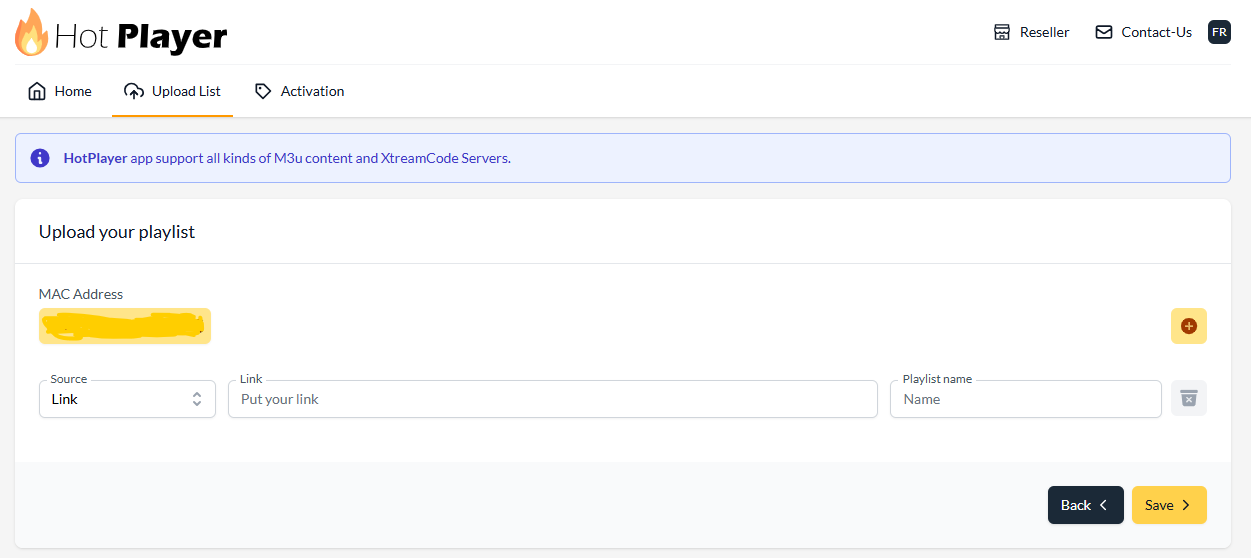
Click Save. Restart the Hotplayer app on your PC or Mac. Your channels and VOD library should now appear automatically.
Important Notes
The players listed above are our top recommendations to setup IPTV on PC or Mac easily , but many other options are available. You can find additional IPTV players directly on the Microsoft Store, the Mac App Store, or from their official websites. The setup process is the same across most players — simply enter your Xtream Codes credentials (Server URL, Username, and Password) or paste your M3U URL and you're good to go.
If any player requests unfamiliar information such as an EPG URL, a portal URL, or a MAC address, just contact our support team via WhatsApp or Email and we'll provide everything you need instantly.
Always download IPTV Players from the official website to avoid unsafe files. Ensure your PC/Mac has a stable internet connection (minimum 20 Mbps recommended). NZ IPTV provides login credentials only — the app itself must be installed separately. For troubleshooting or compatibility issues, contact NZ IPTV Support.