Menu
Contact Us Free Trial
IPTV on MAG Box · Definitive Setup Guide | NZ IPTV
IPTV MAG
ESSENTIAL GUIDE · MAG BOX

IPTV on MAG Box:
Fast & Reliable
Stalker Portal Setup

Updated: June 2026
5 min read
NZ IPTV Experts
IPTV on MAG Box · Stalker Portal

Setting up IPTV on MAG Box is incredibly straightforward because every MAG device includes a native Stalker Middleware portal. No need for third-party apps or complex configuration, once you enter the portal URL we provide, your NZ IPTV subscription authenticates automatically via your MAC address. Experience buffer‑free streaming, electronic program guides, and instant channel zapping.

MAG boxes are engineered for IPTV enthusiasts who value stability and simplicity. With a dedicated portal system and hardware decoding, IPTV on MAG Box outperforms generic Android boxes in terms of boot speed and reliability. You'll get seamless access to live sports, news, movies, and series, all managed through a clean TV interface.

IPTV on MAG Box setup tutorial - NZ IPTV streaming interface
Stalker Portal Native

The built-in middleware client. Just navigate to Settings → Servers → Portals and input the URL provided by NZ IPTV. No installation, no sideloading.

MAC Authentication Zero login

We link your subscription to your MAG's unique MAC address. Once registered, your device is automatically recognized, no username/password prompts.

STEP___1IPTV on MAG Box Hardware & Network Prep
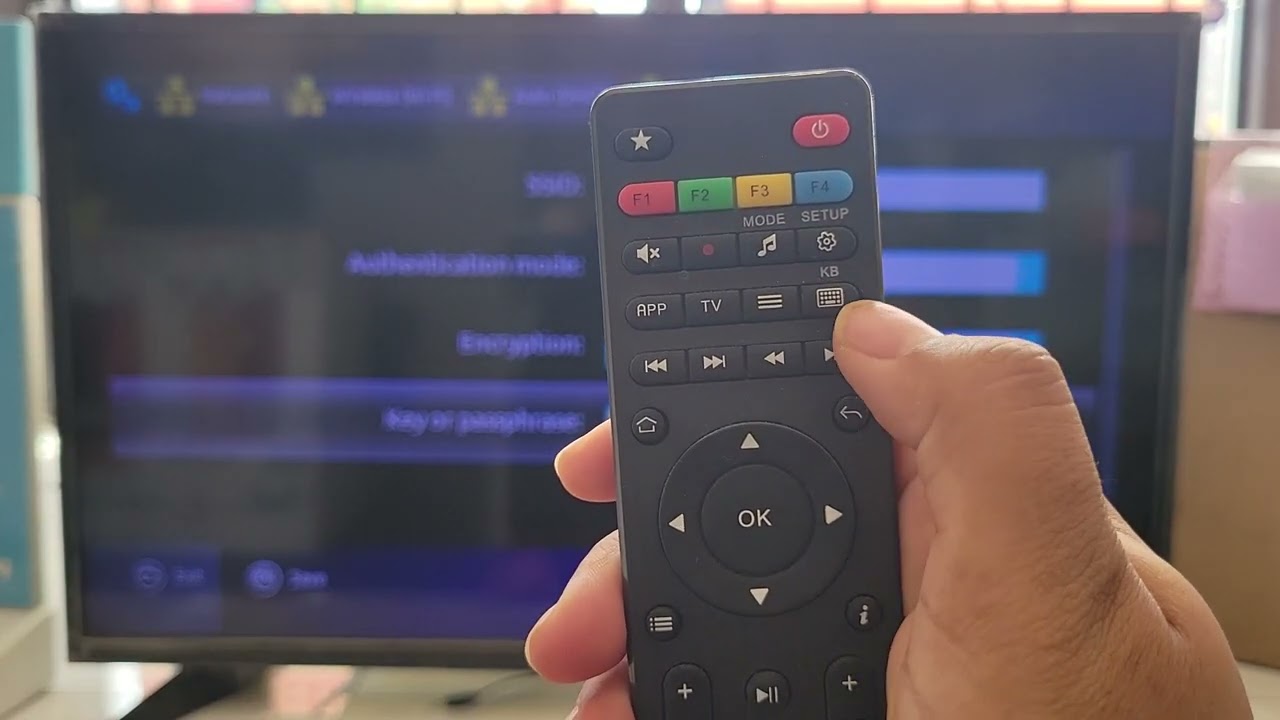
How to Set Up any MAG Box - Video Tutorial thumbnail

Video Walkthrough: How to Set Up any MAG Box? MAG 254, MAG 322w1, MAG 424w3, MAG 420w1

1
Connect & Power Up

Use the included HDMI cable to connect your MAG box to any modern TV. Plug in the power adapter and turn on the device using the remote or rear button.

2
Network Connection (Wired = Best)

For optimal streaming quality, connect an Ethernet cable directly to your router. To use Wi-Fi, go to Settings → System settings → Network → Wireless (Wi-Fi) → Auto (DHCP) and select your network. We recommend at least 20 Mbps for HD/4K IPTV.

Verify your speed at Speedtest.net before starting the IPTV setup.
3
Locate Your MAC Address

Every MAG box has a unique identifier. Check the sticker on the bottom of the device or navigate to Settings → System settings → Device info. The MAC address follows the format 00:1A:2B:3C:4D:5E. Provide this MAC to NZ IPTV support — our team will activate your portal access instantly and send you the portal link.

Your MAG Device MAC (example) 00 : 1A : 2B : 3C : 4D : 5E

Find your physical MAC address on the bottom label. Once you share it with us, we'll register it on our Stalker server, and your IPTV on MAG Box experience becomes plug-and-play.

STEP___2IPTV on MAG Box Enter Portal URL
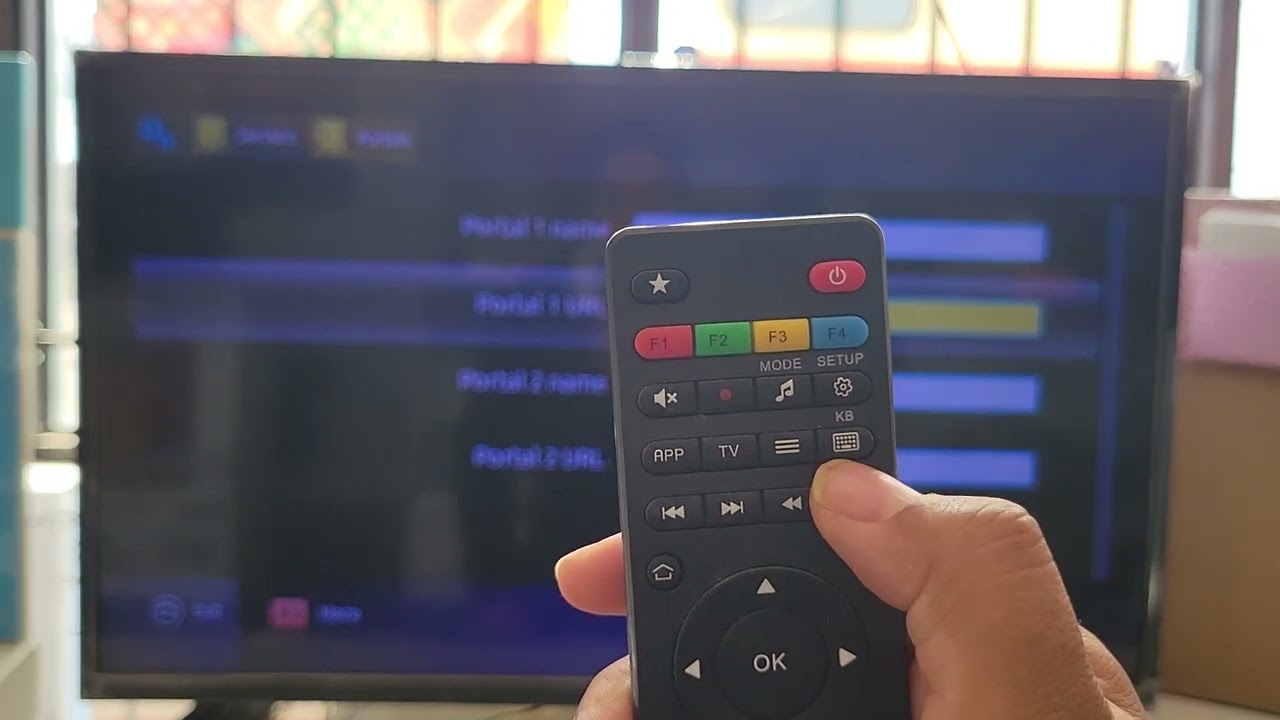
MAG Box Portal Setup Video Tutorial thumbnail

Video Walkthrough: See exactly how to add or edit the portal URL on your MAG box — including navigation to System Settings & Servers.

1
Navigate to Portals Menu

From the main screen, press SETTINGS on your remote → then go to ServersPortals.

SettingsServersPortals
2
Configure Portal 1 Details

Input the following data:

  • Portal 1 Name — e.g., NZ IPTV Premium (any descriptive name)
  • Portal 1 URL — the unique link sent by NZ IPTV (example: http://portal.nz-iptv.com/stalker/c)
Double‑check the URL: it must start with http:// (not https://) and end with /c. Avoid extra spaces.
3
Save & Confirm

Press OK after each entry, then select Save before exiting the portal menu.

STEP___3IPTV on MAG Box Restart & Load Portal

1
Exit Settings Completely

Press the HOME button on your MAG remote to return to the main launcher screen.

2
Perform Device Reboot

Go to Settings → System → Restart Portal (or simply power cycle the MAG box by unplugging for 10 seconds). This forces the device to load the new portal configuration.

After restart, the MAG box will connect to our Stalker server. Your channels, EPG, and VOD library will populate automatically — no manual login required. If the portal doesn't load, verify your internet connection and ensure your MAC address is activated with NZ IPTV.

STEP___4IPTV on MAG Box Enjoy Premium Content

1
Auto-Authentication & Portal Sync

The MAG reads your MAC address and matches it with the NZ IPTV server. Within seconds, the portal interface appears with your subscribed channel lineup.

2
Navigate & Stream

Use the remote to browse live TV categories, catch-up shows, and the extensive movie/series library. Enjoy rock‑solid playback with hardware acceleration.

Crucial Reminders for IPTV on MAG Box

Use the exact portal URL provided by NZ IPTV. Unofficial or mismatched URLs can lead to authentication errors. For a flawless IPTV on MAG Box experience, rely only on the portal link and MAC registration we supply.

  • We deliver the official portal URL with your active subscription — no third-party websites required.
  • MAG devices authenticate solely via MAC address; after you share it with us, the server links your account directly.
  • If channels don't appear, confirm the portal URL uses http:// (never https://) and that your MAG firmware is up‑to‑date.
  • Having issues? Contact NZ IPTV support — we verify MAC activation and can resend your portal link instantly.

Official Portal. Zero Compromise.

By configuring IPTV on MAG Box with our private portal URL, you eliminate buffering, geo-blocking worries, and security risks that come with free lists. Your MAC is whitelisted on our enterprise-grade Stalker middleware, giving you premium reliability.

NZ IPTV streamlines the whole process: we register your device, you input one link — no terminal commands, no complex APKs. Get ready for 4K streams, 24/7 support, and instant EPG updates.

IPTV on MAG Box · Troubleshooting & Fixes | NZ IPTV
MAG BOX FIXES

IPTV on MAG Box
Smart Troubleshooting

Solve portal errors, buffering, MAC issues, and network dropouts with our IPTV on MAG Box Smart Troubleshooting in just a few clicks

Portal & URL

Portal URL rejected / invalid server

  • 1Navigate to Settings → System Settings → Servers → Portals and re-enter the URL provided by NZ IPTV.
  • 2Critical: URL must begin with http:// — using https:// will always fail on MAG boxes.
  • 3Ensure no trailing spaces or hidden characters; pasting from a note app can add invisible symbols.
  • 4After correcting, save and perform a full portal restart from the main menu.
Never use random portal URLs from forums — only the official NZ IPTV portal link guarantees activation.
MAC Address

"Not activated" or empty channel list

  • 1Your MAC address must be manually linked to your subscription. Share the MAC with NZ IPTV Support — activation takes minutes.
  • 2Double-check the MAC: found on the sticker under the MAG box or via Settings → Device info (format 00:1A:2B:3C:4D:5E).
  • 3If you replaced your MAG device, the new unit has a different MAC — re-registration is mandatory.
  • 4After activation is confirmed, restart the portal to refresh the session.
Streaming

Constant buffering / stuttering on IPTV

  • 1Switch to a wired Ethernet connection — Wi-Fi is the #1 cause of unstable streams on MAG boxes.
  • 2Test your internet speed: need 20+ Mbps stable for HD/4K. Use wired if possible.
  • 3Reboot both your router and MAG box (unplug 30 sec).
  • 4Clear portal cache: Settings → System Settings → Advanced → Clear Cache → restart portal.
If buffering happens only during peak evening hours, your ISP might be throttling IPTV traffic — try a VPN or contact support.
Portal & URL

EPG shows but video won't start

  • 1Test a different channel — if only one fails, it's a source issue, not your MAG configuration.
  • 2Restart the portal via Home → Restart Portal to refresh the stream engine.
  • 3Check your internet connection stability (high packet loss prevents video from initializing).
  • 4Make sure MAG firmware is up to date: Settings → System Settings → Software Update.
Network

MAG box offline / no connectivity

  • 1Go to Settings → System Settings → Network — verify status shows "Connected" with an IP address.
  • 2Restart your router first, then the MAG box. This solves 80% of network handshake issues.
  • 3If using Wi-Fi, switch to Ethernet or bring the MAG closer to the router.
  • 4Try manually setting DNS to 8.8.8.8 and 8.8.4.4 under network advanced settings.
Wired Ethernet is strongly recommended for IPTV on MAG Box — wireless connections are unpredictable for real-time streaming.
Streaming

Audio out of sync or completely missing

  • 1Stop the current stream, wait 15 seconds, and resume — resets internal A/V buffer.
  • 2Change the audio track if available (some channels have alternate audio streams).
  • 3Check your TV's HDMI audio settings; disable "Dolby Digital" if sync issues appear.
  • 4Restart the MAG device completely to clear any codec glitches.
Widespread audio desync on multiple channels? Contact NZ IPTV Support — server-side adjustments may be needed.
MAC Address

Subscription "expired" but you just renewed

  • 1Renewals may take 2–5 minutes to propagate; wait and restart the portal.
  • 2Confirm you renewed the exact MAC address linked to your active device.
  • 3Reach out to NZ IPTV Support with your MAC and renewal receipt — they will push an instant refresh.
Network

Random Wi-Fi disconnections during streaming

  • 1The definitive fix: switch to Ethernet. MAG Wi-Fi modules are sensitive to interference.
  • 2Change your router's 2.4GHz Wi-Fi channel to 1, 6, or 11 to avoid overlap.
  • 3Disable "Power saving mode" on the MAG if available (some firmware versions).
  • 4Ensure your router's firmware is updated — outdated firmware causes random device kickouts.
Portal & URL

Endless loading / spinning wheel on portal

  • 1This often indicates a corrupted cache. Go to Settings → Advanced → Clear cache and data.
  • 2Unplug the MAG for 30 seconds, then reboot — forces a clean portal reload.
  • 3If the problem persists, ensure your internet is stable (try opening a speed test on another device).

Still facing issues? We're here to help.

Reach out to our support team with your MAG box MAC address and a brief description. We'll get your IPTV running smoothly in no time.

Contact Support
IPTV on MAG Box · Frequently Asked Questions | NZ IPTV
MAG BOX FAQ

Everything About IPTV
on Your MAG Box

Clear answers to the most common questions — from portal setup to MAC activation and everyday usage.

01 What exactly is a MAG Box and why is it recommended for IPTV?
A MAG Box (by Infomir) is a dedicated IPTV receiver that runs a specialized operating system built around the Stalker Middleware portal. Unlike generic Android boxes, a MAG device requires no app installation or manual configuration — you simply enter the portal URL provided by NZ IPTV, and your subscription activates automatically via your unique MAC address. This makes IPTV on MAG Box exceptionally stable, fast-booting, and user-friendly for both beginners and advanced users.
02 Do I have to install any apps to watch IPTV on my MAG Box?
Absolutely not. One of the biggest advantages of IPTV on MAG Box is the built-in portal client. You only need to go to Settings → System Settings → Servers → Portals, enter the URL we provide, and save. After a quick restart, your channels and VOD library appear automatically. No sideloading, no APK files, no maintenance.
03 How does MAC address authentication work for my MAG Box?
Every MAG Box has a unique hardware identifier called a MAC address (e.g., 00:1A:2B:3C:4D:5E). When you subscribe to NZ IPTV, you share that MAC address with us, and we whitelist it on our Stalker servers. Then, whenever your MAG Box connects to the portal URL we gave you, it authenticates automatically — no usernames or passwords needed. This is the standard and most reliable method for IPTV on MAG Box.
04 Why does my portal URL have to start with http:// and not https://?
MAG Box devices are designed to communicate with Stalker portals using the HTTP protocol only. If you accidentally paste an https:// address, the MAG cannot establish a secure handshake and the portal will fail to load — often showing a generic "blocked" or "connection error". The #1 mistake when setting up IPTV on MAG Box is using https. Always double-check that the URL begins with http:// before saving.
05 What internet speed is required for smooth IPTV on MAG Box?
For a flawless experience, we recommend at least 15–20 Mbps for HD channels and 50 Mbps or higher for 4K/Ultra HD content. However, speed alone isn't everything — stability is key. That's why we always recommend using a wired Ethernet connection rather than Wi-Fi. Ethernet eliminates interference, reduces latency, and provides consistent throughput for IPTV on MAG Box. If you must use Wi-Fi, keep the MAG close to your router and avoid crowded 2.4GHz channels.
06 My channels won't load — what are the most common fixes?
If your IPTV on MAG Box isn't loading channels, run through this quick checklist:

Portal URL: Confirm it starts with http:// (no "s") and there are no trailing spaces.
MAC address activation: Contact NZ IPTV Support to verify your device's MAC is correctly whitelisted.
Internet connection: Test your speed on another device and restart your router if needed.
MAG reboot: Go to Settings → System → Restart Portal or power cycle the device.

If all four are correct and the issue remains, reach out to our support team — we'll investigate server-side and get you back streaming.
07 Can I use more than one IPTV subscription on the same MAG Box?
Yes, most MAG models support multiple portals. In the Portals menu, you'll see options for Portal 1, Portal 2, and sometimes Portal 3. You can enter different portal URLs for each one, and switch between them from the main screen. However, keep in mind that each portal requires its own subscription and MAC address activation. For IPTV on MAG Box with NZ IPTV as your primary service, you can still add a second portal for backup or testing — but we recommend focusing on one well‑configured portal for the best experience.
08 Is using IPTV on a MAG Box legal in New Zealand?
The MAG Box itself is a legal device sold worldwide. IPTV technology is also completely legal — it becomes a matter of what content you access and whether the provider holds proper distribution rights. NZ IPTV operates with respect to New Zealand broadcasting regulations and content licensing. We always encourage our users to subscribe to legitimate services and avoid unofficial or pirated streams. When you use IPTV on MAG Box with a licensed provider like NZ IPTV, you're enjoying a safe, compliant, and high-quality streaming experience.
09 How do I update my MAG Box firmware for better IPTV performance?
Keeping your MAG Box firmware up to date ensures maximum compatibility with Stalker portals. To update: go to Settings → System Settings → Software Update. Select "Check for updates" and follow the on‑screen instructions. Always download firmware from official Infomir sources or the built‑in updater — never from third‑party forums. Regular updates can resolve bugs, improve video decoding, and enhance overall stability for IPTV on MAG Box.