IPTV on Smart TV : take control of your entertainment
Take control of your entertainment with IPTV on Smart TV, the smarter, more affordable way to stream everything you love. Forget expensive cable and outdated satellite setups; our streamlined IPTV solution delivers live channels, blockbuster movies, hit series, and nonstop sports directly to your Smart TV. Setup is effortless with our step‑by‑step guide, and thanks to New Zealand's UFB fibre and reliable VDSL, you'll enjoy smooth HD and 4K streaming. From local Kiwi favourites to international content, IPTV on Smart TV puts the world of entertainment at your fingertips.
Recommended Apps for IPTV on Smart TV
After testing IPTV on Smart TV with NZ server streams, we recommend 4 reliable apps. Three offer generous free trials so you can explore features before committing, while one premium option delivers top performance without a trial. Together, they cover every need for smooth, buffer‑free IPTV on smart TV experience.
| App | Downloader Code / Source | App Free Trial |
|---|---|---|
| Hot Player | 395800 / App store | 30 days |
| IBO Player Pro | 923441 / App store / LG Store | 7 days |
| SmartOne IPTV | Play store / App store / LG Store | 15 days |
| TiviMate | Play Store | No Free Trial |
The best app to sideload IPTV players.
The Downloader app by AFTVnews is one of the best tools for sideloading applications for IPTV on Smart TV that are not available in the TV applications store. Trusted by thousands of users worldwide, it is a well‑known and reliable APK source that makes installing IPTV players and other apps simple, secure, and efficient, especially when setting up IPTV on Smart TV.
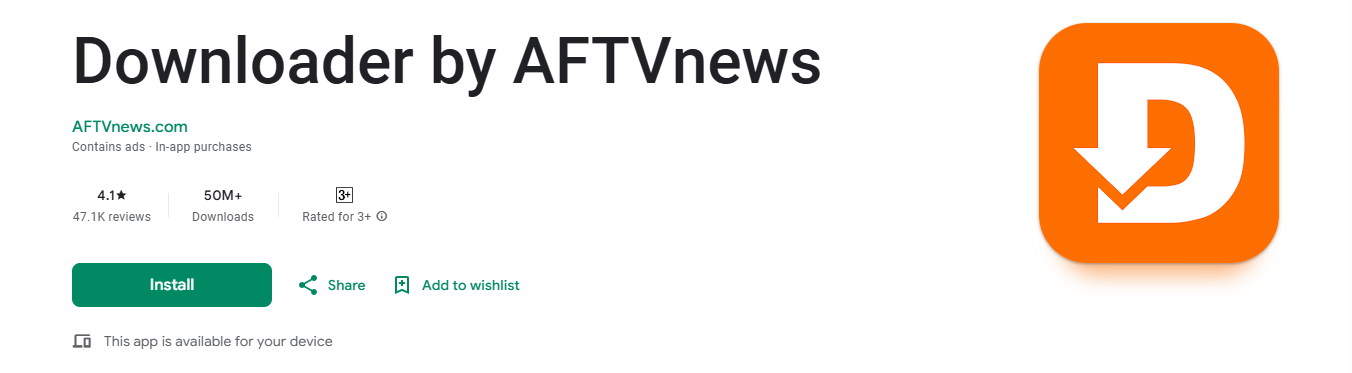
⚠️ Warning: Before you dive into the installation process for IPTV on Smart TV, make sure Apps from Unknown Sources is enabled on your Android TV or Fire TV device. You will find this under Settings > Device Preferences > Security & Restrictions. Without it enabled, your TV will block the Downloader tool from installing third‑party applications.
1 - HotPlayer
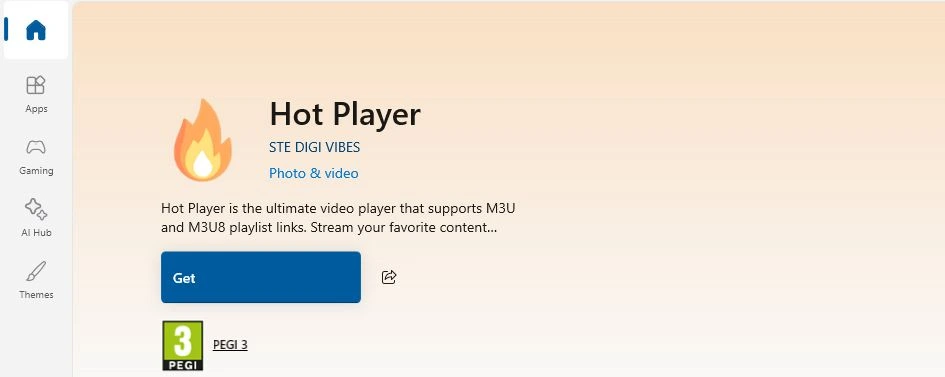
HotPlayer (Free to Use for the First 30 Days) may also appear as Hot IPTV in some stores, is our top recommendation for beginners who want IPTV on Smart TV up and running within minutes. The interface is clean, the trial is generous, and the activation process is straightforward.
Step 1 — Download, Open the App & Get Your MAC
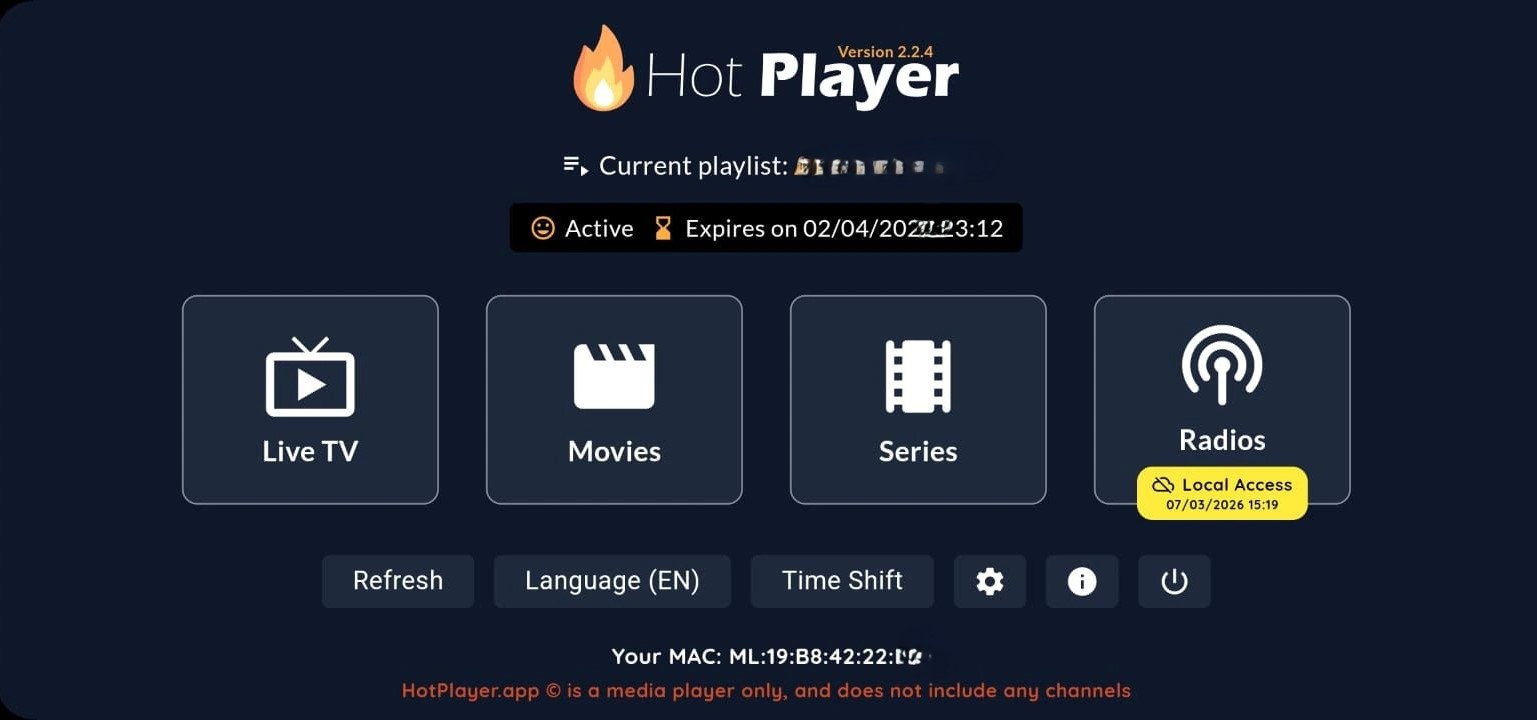
- Download the HotPlayer APP from your official TV applications store, from the official website hotplayer.app, or use the Downloader app with the code 395800.
- Open the HotPlayer app on your Smart TV.
- At the bottom of the main screen, you'll see a MAC address displayed 12:34:56:78:99. Write it down carefully, you'll need it later when uploading your playlist.
Step 2 — Visit the Official HotPlayer Website
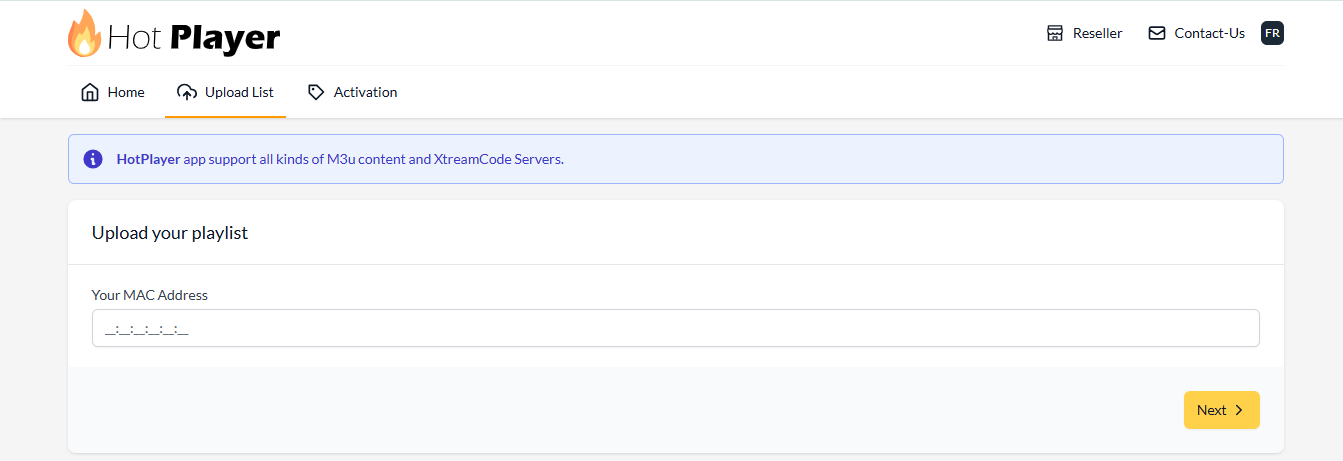
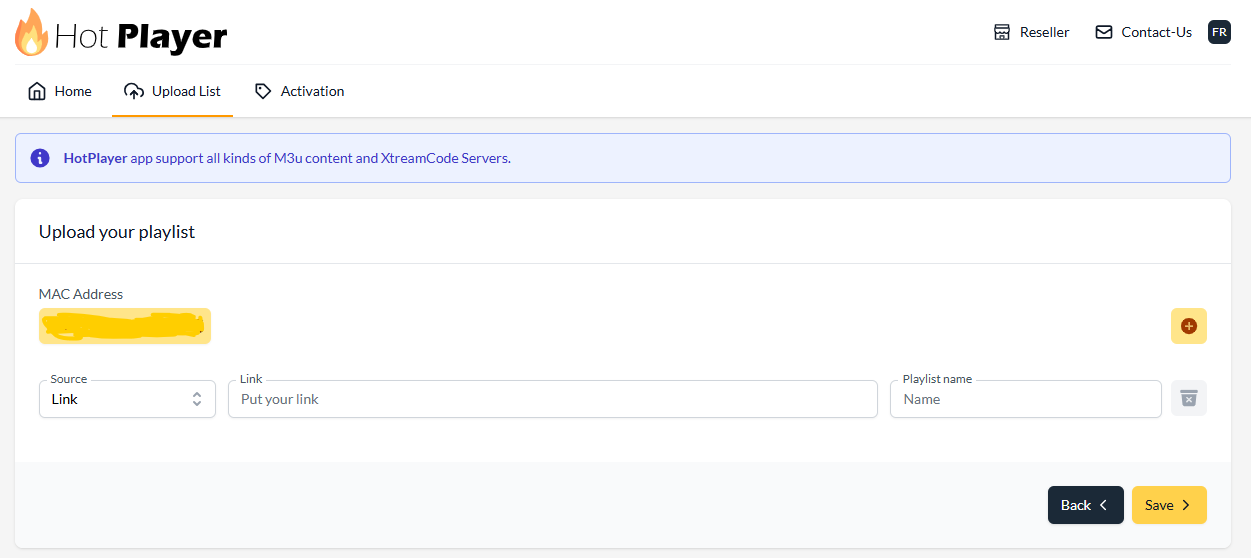
On your phone or computer, go to hotplayer.app/upload.
Step 3 — Enter Your Details
- MAC Address : From your app screen, then press NEXT.
- M3U Playlist URL : The link provided by us.
- Playlist name : e.g., NZ IPTV
⚠️ Critical Warning: When copying and pasting, always make sure the M3U URL starts with http:// and not https://
Step 4 — Save and Restart
Click Save, then restart the HotPlayer app on your TV. Your channels and VOD library will appear automatically.
For the App activation after the trial, review HotPlayer's pricing and activation page.
2 - Ibo Player Pro
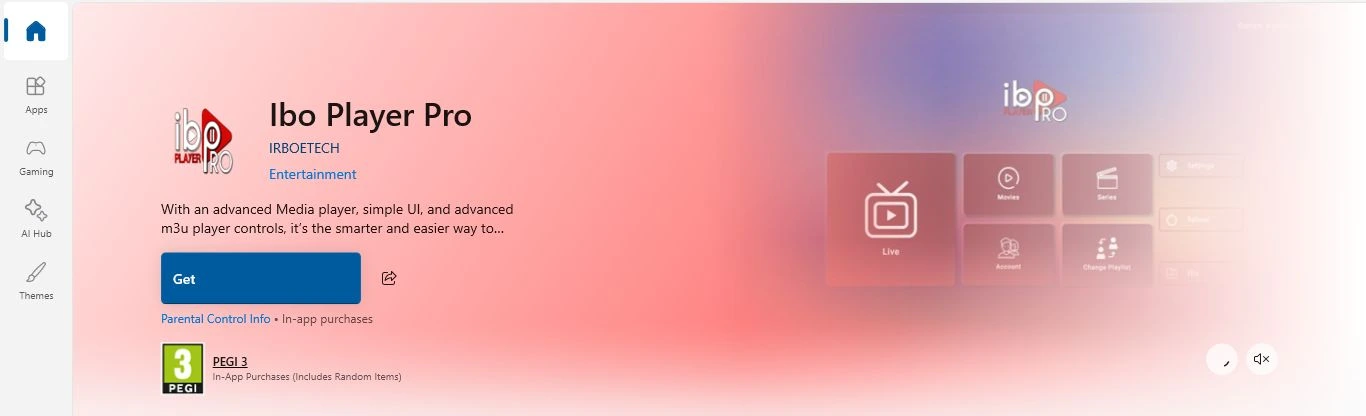
Ibo Player Pro (Free to Use for the First 7 Days) is one of the most popular IPTV players among users. However, there are many fake copies in app stores. When downloading, always make sure the developer is listed as IRBOETECH to ensure you're installing the official version. For the best experience with IPTV on Smart TV, Ibo Player Pro remains a trusted choice among IPTV users worldwide.
Step 1 — Download, Open the App & Collect Device Credentials
- Download Ibo player Pro from your official TV app store, or use the Downloader app with the code 923441.
- Open the Ibo player pro app on your Smart TV.
- On the main screen, you'll see both a MAC address and a Device Key displayed. Write these details down carefully.
Step 2 — Log In to the Web Portal
Go to iboplayer.pro/manage-playlists and log in with your MAC address and Device Key.
Step 3 — Add Your IPTV Playlist
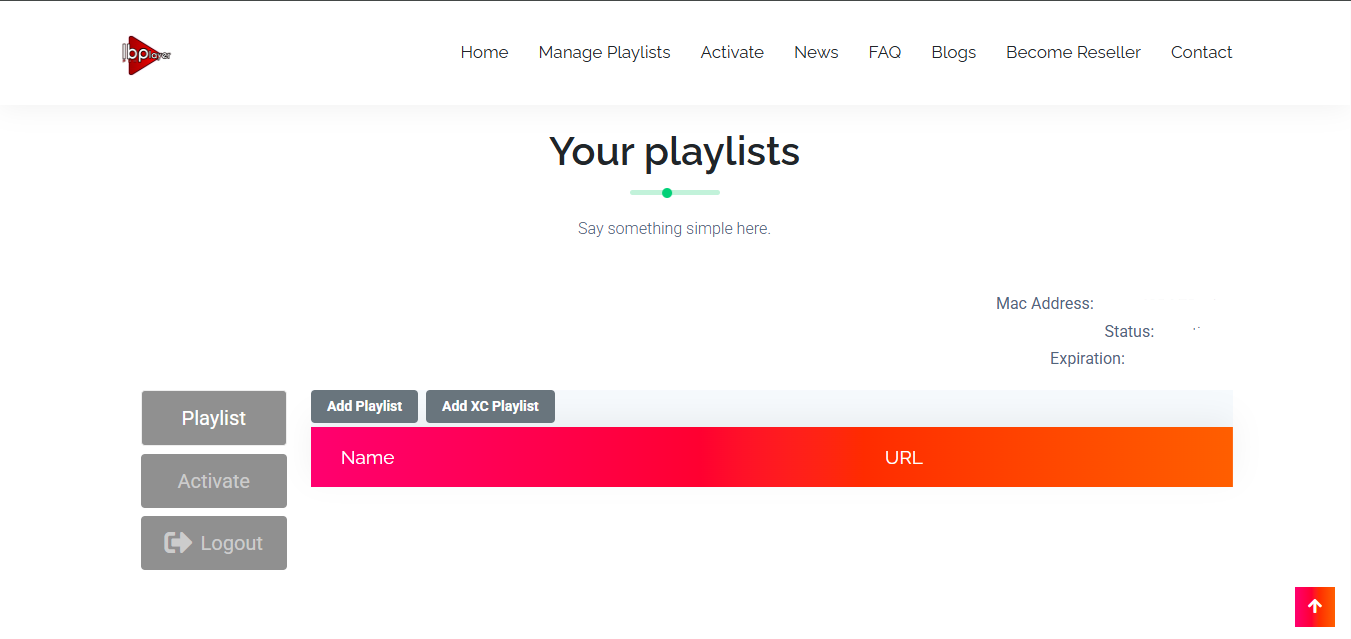
Press on "Add Playlist", paste your M3U URL and give your playlist any name you like.
⚠️ Critical Warning: Make sure the URL starts with http://, not https://. An incorrect protocol will result in an empty channel list.
Step 4 — Start Streaming
Restart the Ibo Player Pro on your TV and your content loads. For App activation, see IBO player Pro's activation portal.
3 - SmartOne IPTV
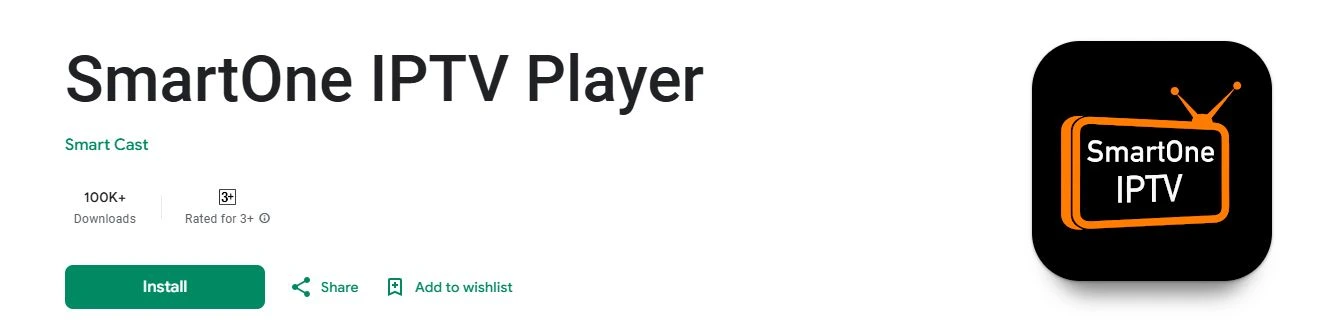
SmartOne IPTV (Free to Use for the First 15 Days) is available directly from major app stores, making it ideal if you prefer not to sideload applications. For users setting up IPTV on Smart TV, SmartOne IPTV offers a simple and reliable option that ensures smooth installation.
Step 1 — Download, Open the App & Collect MAC
From the TV apps store look for SmartOne IPTV. Download, Launch the app and note the MAC address displayed by the app.
Step 2 — Upload Your Playlist Online
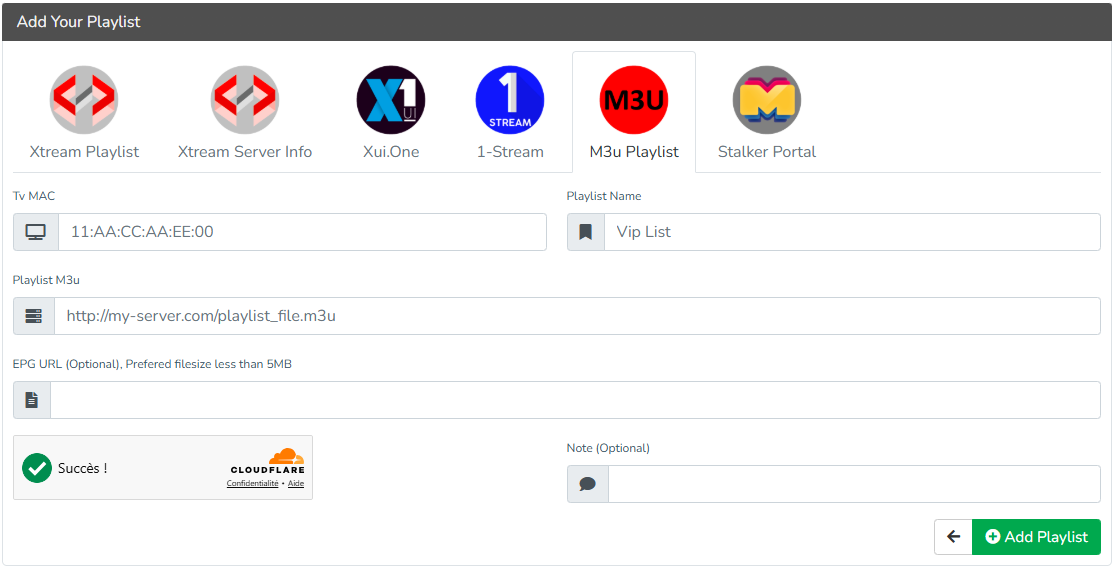
Go to smartone-iptv.com. Select Upload playlist > M3U Playlist, enter your MAC address, give your playlist any name, paste the M3U URL, complete the security check, and click "Add Playlist".
⚠️ Critical Warning: Ensure the M3U URL starts with http:// , not https:// . This is the number one mistake that causes a silent fail.
Step 3 — Organize and Watch
Restart the app, your channels and movies will automatically appear. For App activation, see SmartOne's activation page.
4 - Tivimate
TiviMate (No Free Trial) is considered one of the best IPTV players available. Built as a pure Android app, it offers extensive settings and customization, with a solid software infrastructure that ensures smoother performance, faster loading, and fewer interruptions compared to most Smart TV apps.
Step 1 — Download and Open the App
- Download the app from playstore or using the downloader app (Tivimate Downloader code = 272483).
- Launch the Tivimate app on your device.
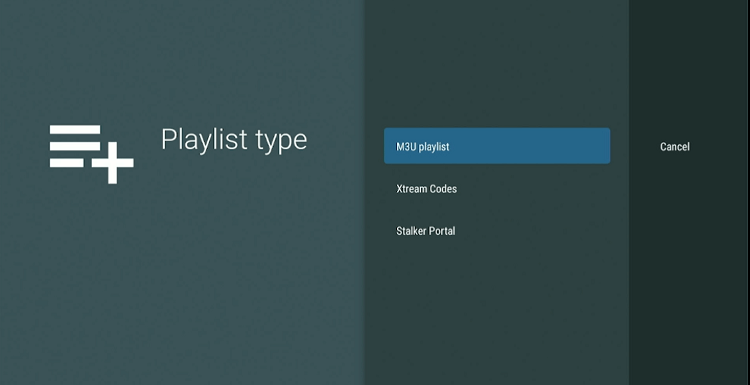
- Click on Add Playlist.
- Select the connection method Xtream Codes Login (recommended for best compatibility).
Step 2 — Enter your subscription details
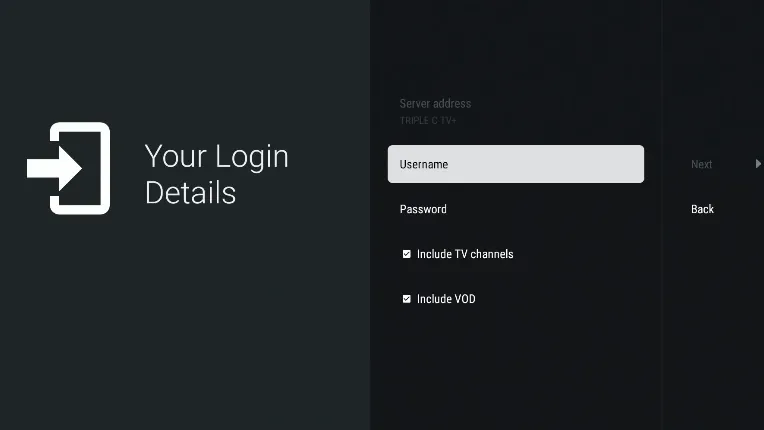
Fill in the information that we've provided for you:
- Username
- Password
- Server URL
Tip: Check Include VOD to access movies and series on demand.
Step 3 — Save and finalise
- Save the information and give your playlist a name.
- Click Done to validate.
- The app will now load the channels and content linked to your IPTV subscription.
For app activation and premium features, review Tivimate's pricing at tivimate.com.
Quick Comparison: Which App Is Best for Your IPTV on Smart TV?
| Feature | HotPlayer | IBO Pro Player | SmartOne IPTV | Tivimate |
|---|---|---|---|---|
| Trial Length | 30 days | 7 days | 15 days | premium only |
| Setup Speed | Very Fast | Moderate | Fast | Fast |
| Best For | Beginners | Power users | Play Store users | Power users |
| Playlist Management | Basic | Advanced | Moderate | Advanced |
| EPG Support | Yes | Yes | Yes | Yes |
| VOD Support | Yes | Yes | Yes | Yes |
| Requires Sideloading | Yes | Yes | No | Yes |